.svg)
How to Send Automated WhatsApp Messages (Without Getting Banned)


When WhatsApp automation goes wrong, it usually looks like one of these:
- Customers block the number and report messages as spam.
- Meta restricts the number, and messages stop going through.
Most businesses blame the automation. You'll hear things like: "WhatsApp bans you for using bots."
…or…
"Automated messages feel like spam. We're going back to replying manually."
But automation isn't the problem.
With official tools, WhatsApp doesn't care whether a person or software sent the message. It does care how people react to it, and has rules about who you can message, when, and with what. Rules that are easy to break if nobody's told you about them.
It matters more now, too. Starting October 1, 2026, Meta charges for almost every message businesses send on the WhatsApp Business Platform, including replies. Careless automation now costs you twice: in blocks, and on your bill.
This guide covers what you can automate, the rules WhatsApp enforces, what each message costs, and how to set it up so your number stays healthy.
What counts as an automated WhatsApp message?
An automated WhatsApp message is any message your business sends without someone typing it at that moment. It goes out because something happened like a customer messaged you, an order was placed, a date arrived.
Most fall into five types:
1. Automatic replies: A customer asks, “Are you open on Sunday?” and gets an answer straight away, even at midnight.
2. Triggered notifications: Someone places an order, and a confirmation goes out automatically. Their parcel ships, and a tracking update follows.
3. Reminders and follow-ups: An appointment reminder the day before. A nudge about items left in a cart.
4. Campaigns: A promotion or announcement sent to a group of customers who’ve agreed to hear from you.
5. AI conversations: An AI Employee that answers questions, recommends products, and qualifies leads, then hands the conversation to a person when needed.
Here’s why businesses get caught out: each of these types follows different rules. A reply to a customer who just messaged you is treated very differently from a promotion sent to someone who hasn’t spoken to you in months. This guide helps you understand that difference.
Auto-replies and away messages in WhatsApp Business
If you’re using the free WhatsApp Business app, you already have three basic automation tools which are a good place to start.
Greeting message
A greeting message goes out automatically when someone messages your business for the first time, or after a long gap since their last message.
For example: “Hi! Thanks for messaging Bloom Skincare 👋 How can we help today?”
Away message
An away message replies automatically when you’re not available. You can send it all the time, only outside your business hours, or on a custom schedule.
For example: “Thanks for your message! We’re closed right now, but we’ll reply first thing tomorrow from 9 a.m.”
Quick replies
Quick replies aren’t fully automatic, but they save time. You save answers to common questions, then insert one by typing “/” and a shortcut in the chat.
For example, typing “/delivery” fills in your full delivery policy.
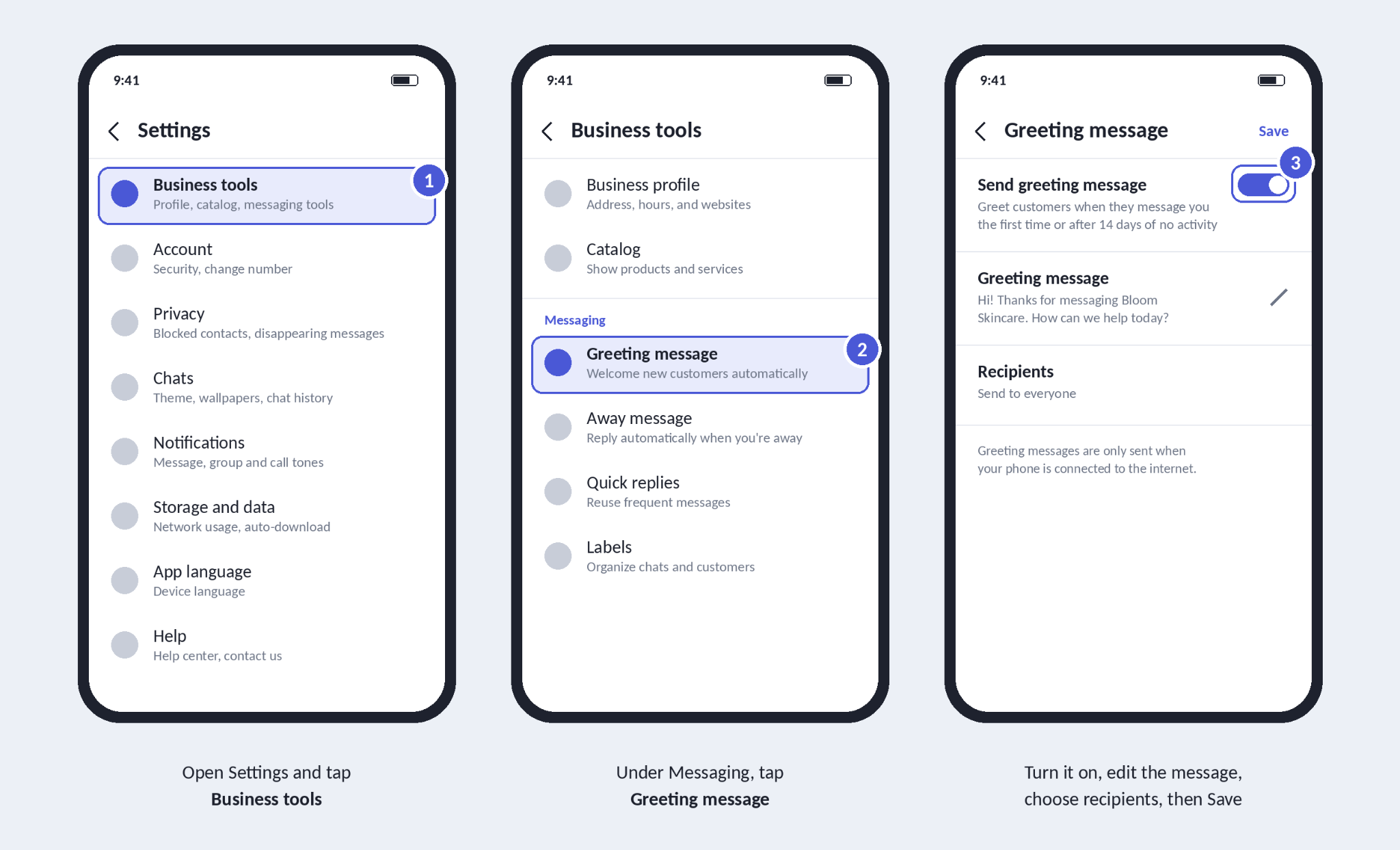
How to set them up
- Open the WhatsApp Business app and go to Settings.
- Tap Business tools.
- Choose Greeting message, Away message, or Quick replies.
- Turn the feature on, write your message, and choose who receives it and when.
- Save.
Where they stop being enough
These tools are free, and for a one-person business they may be all you need. But they can’t answer different questions differently, send order confirmations, reminders, or shipping updates, connect to your store, CRM, or booking system or let a team share one number properly
Once you want messages triggered by real events, or you’re getting more messages than one person can answer, you need the WhatsApp Business Platform (often called the API).
The two official ways to automate WhatsApp (and the one that gets you banned)
There are only two ways to automate WhatsApp that Meta approves of.
1. The WhatsApp Business app
This is the free app covered above. It gives you greeting messages, away messages, and quick replies. It’s fine for a solo business with a manageable number of chats, but it can’t send triggered notifications, connect to other tools, or scale.
2. The WhatsApp Business Platform (API), through a provider like Heyy
The WhatsApp Business Platform isn’t an app you download. It connects your WhatsApp number to software that can send and receive messages for you.
Through a platform built on it, you can:
- send approved template messages, like order confirmations and reminders
- trigger messages from events in your store, CRM, or booking system
- run campaigns to opted-in customers
- let an AI Employee answer questions around the clock
- manage every conversation as a team in one shared inbox
This is what most growing businesses mean when they talk about WhatsApp automation. Our WhatsApp automation guide explains the difference between the app and the API in more detail.
3. The one that gets you banned: unofficial tools
Then there’s everything else: browser extensions that send messages through WhatsApp Web, bots that control your phone, and modified versions of WhatsApp that promise bulk sending.
They’re tempting because they’re cheap and easy, but they’re also against WhatsApp’s rules. WhatsApp can detect unusual sending patterns, and numbers using these tools can be restricted or banned. If your business number is how customers reach you, that’s not a risk worth taking.
The WhatsApp messaging rules you need to know
This is the part most businesses skip, and the part that decides whether your number stays healthy. None of the rules are complicated once you see them laid out.
1. The 24-hour customer service window
When a customer messages you, a 24-hour window opens. Inside that window, you can reply however you like: free-form text, images, links, or an AI Employee’s answer.
Every new message from the customer resets the clock. Once 24 hours pass without a new message from them, you can’t send a regular reply anymore. The only way to reach them is with an approved template message.
For example: a customer asks about a product on Monday, then goes quiet. On Tuesday afternoon, the window has closed and if you want to follow up on Thursday, you’ll need a template.
2. Template messages need approval
A template is a pre-written message that Meta reviews before you can use it. You can add variables, like a name or an order number, so each message is personal:
“Hi {{name}}, your order {{order_number}} has shipped! Track it here: {{link}}”
Templates are how businesses start conversations, send notifications, and run campaigns. Meta checks them to keep spam off the platform, so clear, specific, useful templates get approved. Vague, pushy, or misleading ones get rejected.
3. Templates have categories, and the category matters
Every template belongs to one of three categories:
- Marketing: promotions, offers, product announcements, abandoned cart reminders.
- Utility: updates the customer expects, like order confirmations, shipping updates, appointment reminders, and receipts.
- Authentication: one-time passcodes for logging in or verifying an account.
The category affects what you pay and how strictly the message is treated. And there’s a catch: if you add a promotion to a utility message, like a discount code at the bottom of a shipping update, it’s treated as marketing.
4. People need to opt in
You should only send business-initiated messages to people who’ve agreed to hear from you on WhatsApp. That doesn’t mean a checkbox buried in your terms but a clear choice, like:
- a WhatsApp opt-in box at checkout
- a sign-up form that says what you’ll send
- asking in the chat: “Want us to send order updates here?”
Opt-in is important because people who asked for your messages are much less likely to block you.
5. Messaging limits
Meta limits how many different people you can start conversations with in a rolling 24-hour period.
- New business portfolios start with a limit of 250 people a day.
- Since October 2025, the limit is shared across every WhatsApp number in your Meta business portfolio, rather than set per number.
- The limit rises automatically, in steps, when you send good-quality messages and use a good share of your current limit.
P.S These limits only apply to conversations you start with templates. Replying to customers who messaged you first doesn’t count.
6. Your quality rating
Meta watches how people react to your messages. If lots of people block you or report your messages as spam, your quality rating drops.
A low rating can get your number flagged, stop your limit from growing, and eventually restrict what you can send. It’s WhatsApp’s way of measuring whether people actually want your messages.
7. What it costs (updated for October 2026)
WhatsApp pricing changed significantly on October 1, 2026. Here’s how it works now:
- Meta charges per delivered message. That includes marketing, utility, and authentication templates, and now service messages too: regular replies to customers inside the 24-hour window, whether a person or a third-party AI writes them.
- Rates depend on the message category and the customer’s country. Service messages cost the same as utility and authentication messages in each market.
- Each message is charged once. A reply that includes promotional content isn’t charged again as marketing.
- One window is still free: conversations that start from a click-to-WhatsApp ad open a free entry point window, where message delivery isn’t charged.
- You need a payment method on file. Without one, Meta won’t deliver service messages.
Until October 2026, replies to customers were free. That’s no longer true, so it pays to be thoughtful about how many messages your automation sends. See Meta’s WhatsApp pricing page for current rates.
Why business numbers get restricted or banned
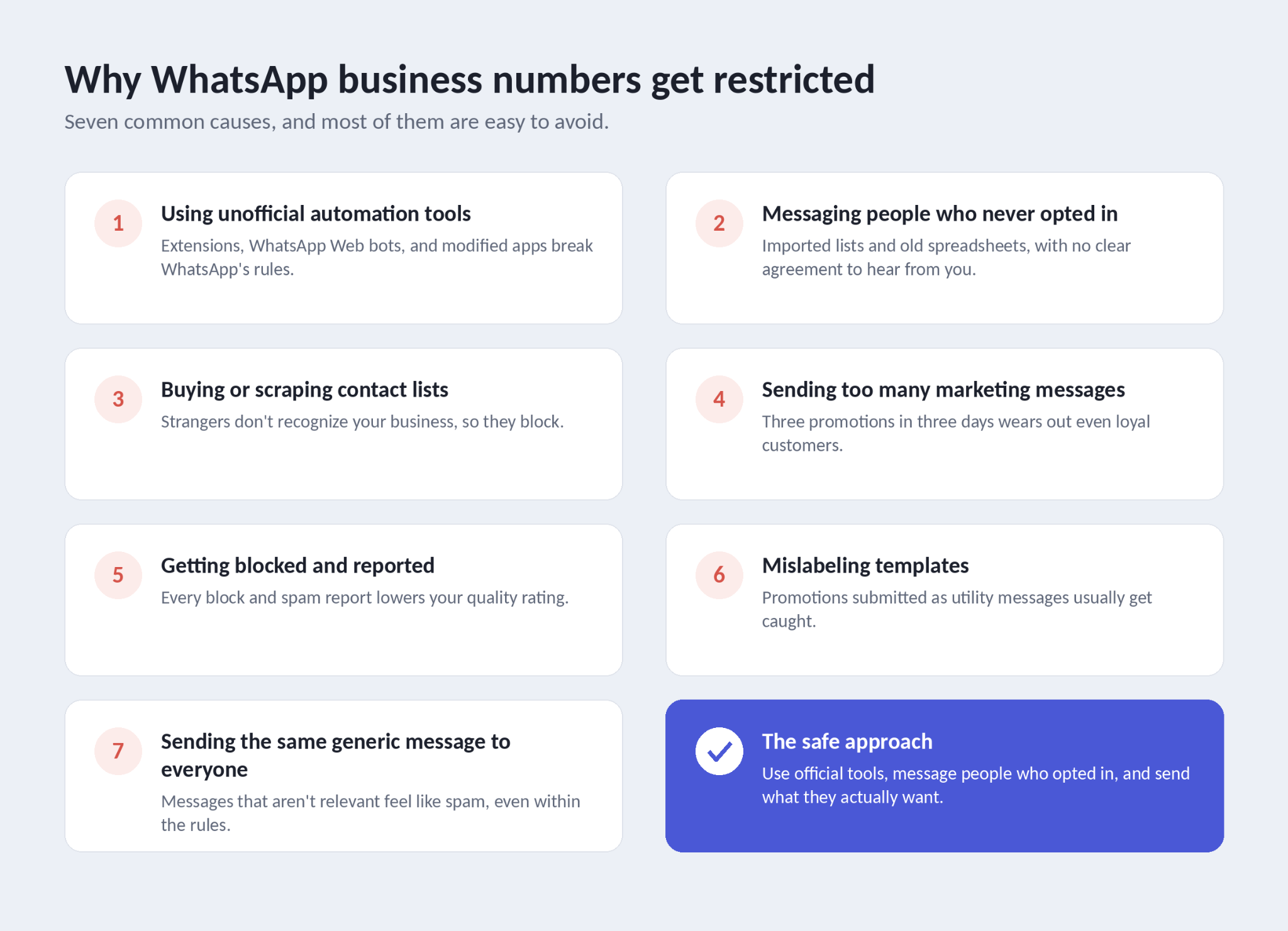
Most WhatsApp restrictions come down to the same few causes. If you avoid these, you avoid most of the risk.
1. Using unofficial automation tools. Browser extensions, WhatsApp Web bots, and modified apps break WhatsApp’s rules. This is the fastest route to a banned number.
2. Messaging people who never opted in. Imported contact lists, numbers from old spreadsheets, or anyone who didn’t agree to hear from you on WhatsApp.
3. Buying or scraping contact lists. Strangers who receive your message don’t recognize you, and they block.
4. Sending too many marketing messages. Three promotions in three days wears out even your most loyal customers.
5. Getting blocked and reported. Every block and spam report lowers your quality rating. Enough of them in a short time and your number gets flagged.
6. Mislabeling templates. Submitting a promotion as a utility message to save money or get past the rules usually gets caught, and it hurts your standing.
7. Sending the same generic message to everyone. Messages that aren’t relevant to the person feel like spam, even when they technically follow the rules.
What to do if your number gets flagged
If your quality rating drops or your number gets flagged, don't panic, but do act quickly.
The first thing to do is pause your marketing messages straight away. The last thing you want is another campaign going out while people are still blocking you.
Then look at your most recent campaign and work out what went wrong. Was it the audience, the timing, or the message itself? Maybe it went to people who hadn't heard from you in months, or it landed at 11 p.m., or it simply wasn't relevant to them.
When you're ready to send again, tighten your audience to people who've recently engaged with you as they're the ones most likely to welcome your message.
In the meantime, keep replying to customers as normal. Helpful conversations with people who messaged you usually don't hurt your rating.
Quality usually recovers once people stop blocking and reporting your messages, so give it some time.
What to automate: messages customers actually want
The safest automated messages are the ones customers are glad to receive. Now that every message is charged, they’re also the ones worth paying for.
Here are ready-to-use examples you can adapt. Anything in {{double brackets}} is a variable filled in automatically.
1. Utility messages: Utility messages are updates about something the customer has already done, like placing an order, booking an appointment, or making a payment. They're the messages people expect and are usually glad to receive.
Order confirmation:
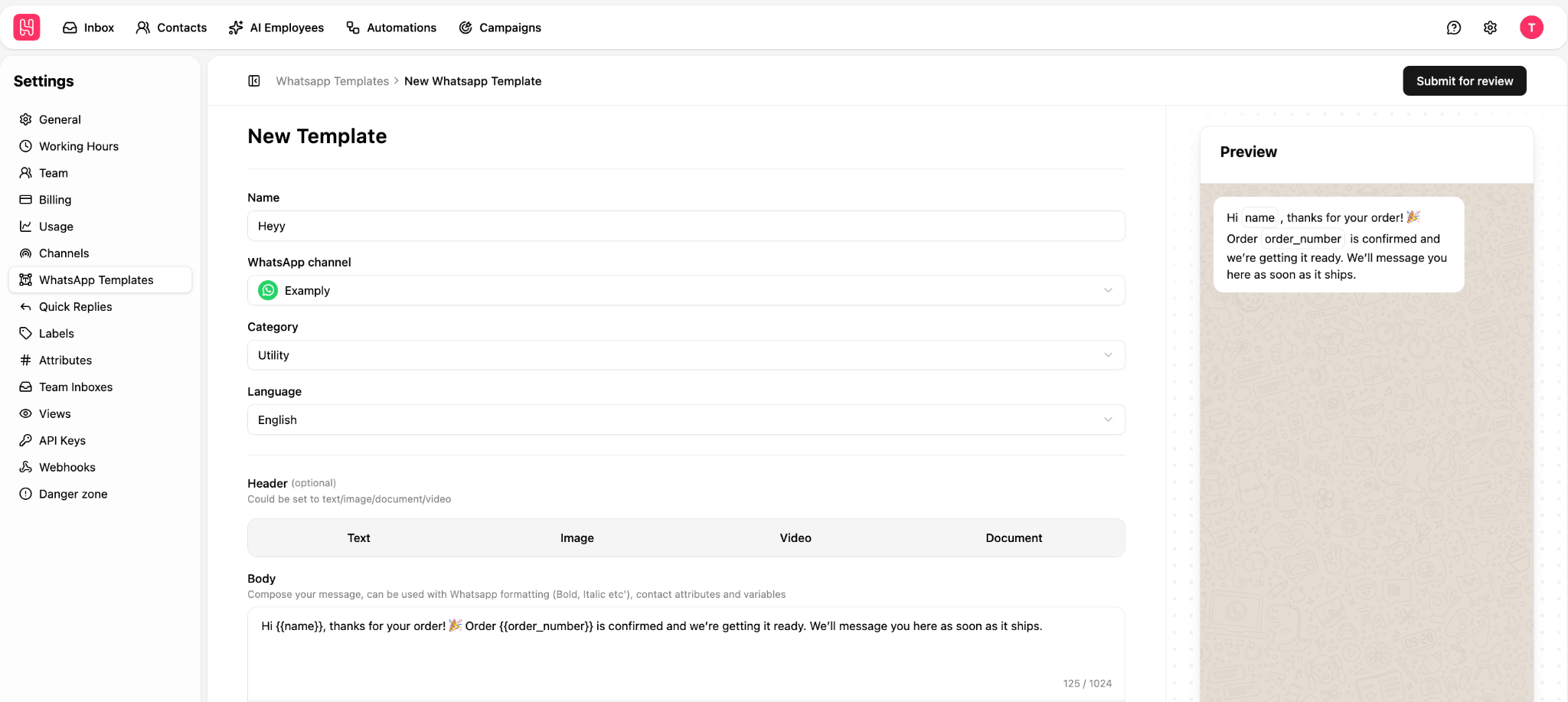
Hi {{name}}, thanks for your order! 🎉 Order {{order_number}} is confirmed and we’re getting it ready. We’ll message you here as soon as it ships.
Shipping update
Good news, {{name}}! Your order {{order_number}} is on its way. Track it here: {{tracking_link}}
Appointment reminder
Hi {{name}}, a reminder that your appointment with {{staff_name}} is tomorrow at {{time}}. Reply 1 to confirm or 2 to reschedule.
Payment receipt
Hi {{name}}, we’ve received your payment of {{amount}} for invoice {{invoice_number}}. Thank you!
2. Marketing messages: Any message designed to encourage a sale, such as offers, product announcements, and reminders to buy fall under marketing. Only send these to customers who’ve opted in to marketing.
Abandoned cart reminder
Hi {{name}}, you left {{product_name}} in your cart. It’s still available if you’d like to finish your order: {{cart_link}}
Back-in-stock alert
Hi {{name}}, {{product_name}} is back in stock! You asked us to let you know. Grab yours here: {{link}}
Offer for opted-in customers
Hi {{name}}, as one of our subscribers you get early access to our autumn sale: 20% off everything until Sunday. Shop here: {{link}}
Service replies: These aren’t templates, but answers to questions customers send you within the 24-hour window. “Do you deliver to my area?”, “Is this available in blue?”, “What’s your return policy?” This is where an AI Employee does most of the work.
Feedback requests: Keep feedback requests short. A one-tap reply gets far more responses than a link to a long survey.
Hi {{name}}, how was your order? Reply with a number from 1 to 5. It takes two seconds and really helps us.
How to send automated WhatsApp messages with Heyy
Heyy is an official Meta partner, built on the WhatsApp Business Platform, so everything below follows Meta's rules by design. Here's how to set it up.
Step 1: Connect your WhatsApp number
You'll need a Meta Business Portfolio with its Business Info fully completed, and a phone number that can receive an SMS or voice call.
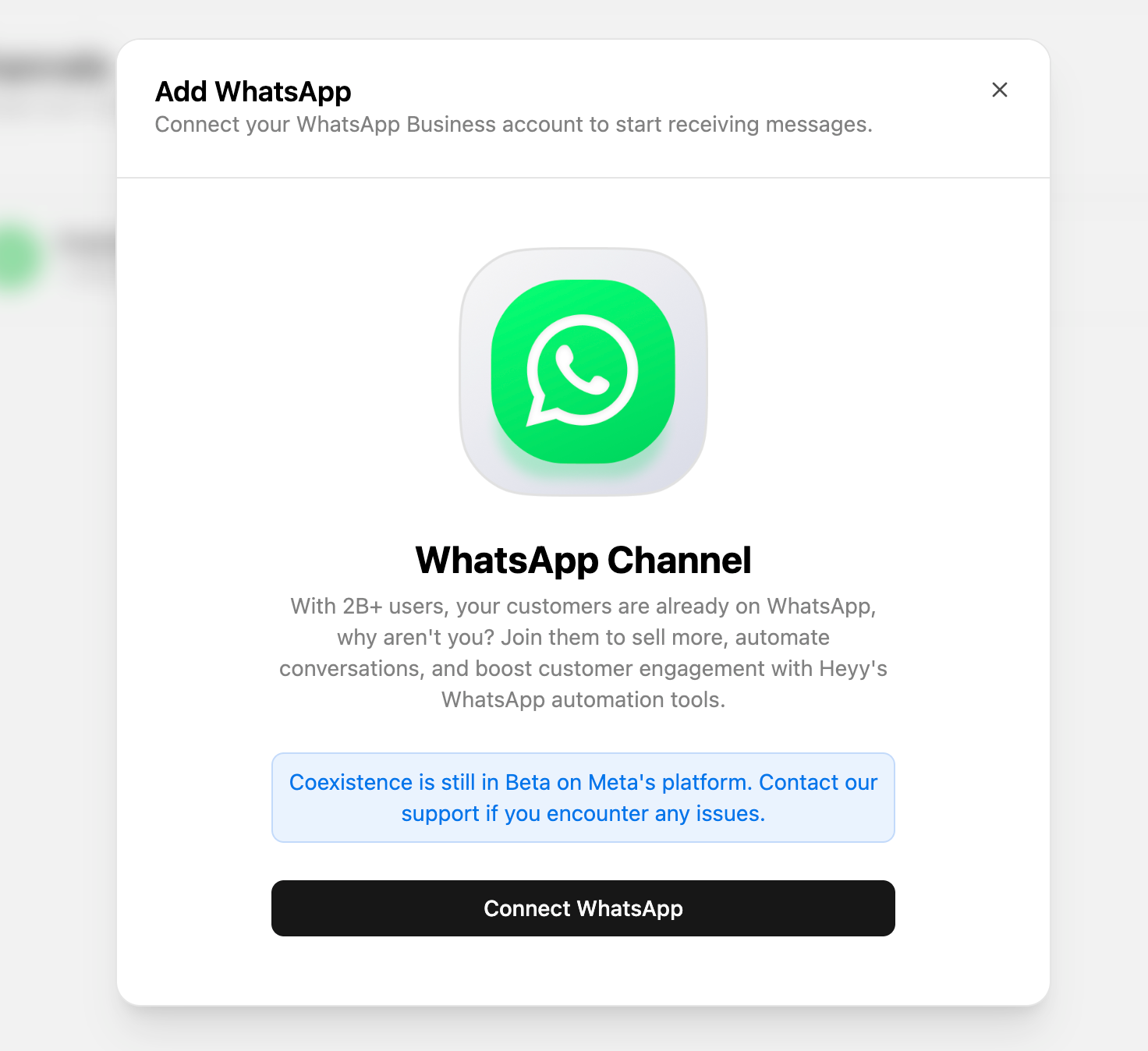
Log in to Heyy, go to Settings → Channels → Add Channel, select WhatsApp, and click Connect Number. Then choose how to connect:
- Cloud API (recommended): choose Create a WhatsApp Business account and verify your own number. The number can no longer be used in the WhatsApp app, so back up your chats first.
- Coexistence: choose Connect a WhatsApp Business App and scan the QR code to keep using the app alongside Heyy. When asked, select Don't share chats.
Step 2: Create your message templates
Go to Settings → WhatsApp Templates. Create a template, choose its category (marketing, utility, or authentication), add your variables, and submit it to Meta for approval.
Once a template is approved, it syncs to Heyy and you can use it anywhere. If you need to change an approved template, duplicate it into a new version instead of starting from scratch.
Step 3: Automate messages triggered by events
In Automations, create a flow that starts when something happens, like a new order, then add a WhatsApp action that sends the right template.
For example: a new order comes in → the order confirmation template goes out with the customer’s name and order number filled in.
Step 4: Let an AI Employee handle the replies
When customers reply to your messages, or message you first, an AI Employee can answer inside the 24-hour window. It works from your products, policies, and FAQs, and hands the conversation to your team in the shared inbox when it needs a person.
Remember that since October 1, 2026, these replies are service messages, which Meta charges per message.
Step 5: Send campaigns to opted-in customers
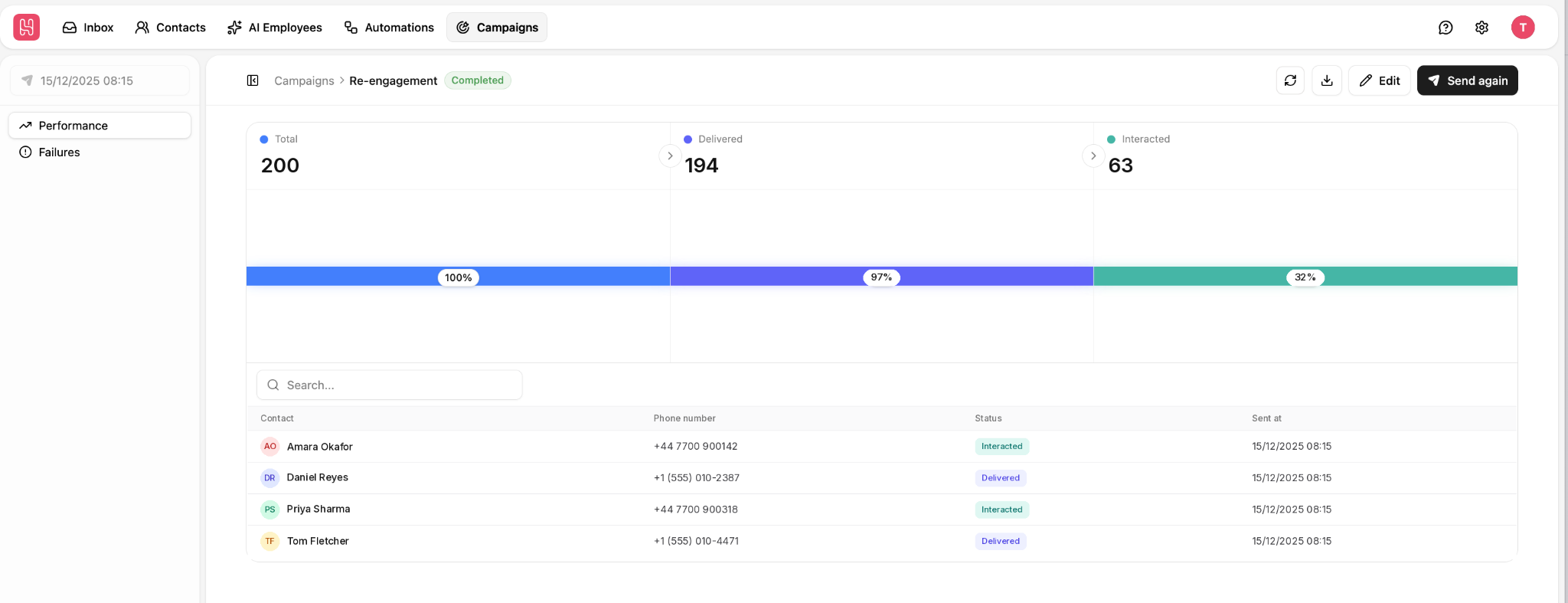
For promotions and announcements, open Campaigns:
- Name the campaign and choose your WhatsApp channel.
- Choose your audience from a saved contact view or filters, for example “customers who opted in to marketing and bought in the last 90 days.”
- Pick an approved template.
- Start the campaign.
Heyy only sends to contacts who are eligible to receive outbound messages. That means fewer blocks and spam reports, a healthier quality rating, and no paying for messages nobody wanted.
Step 6: Monitor delivery
Each campaign has an execution page showing its progress. The Delivery & failures view shows who received your message and who didn’t, so you can fix problems before your next send.
Best practices for timing, frequency, and cost
- Send utility messages the moment they’re relevant. An order confirmation two hours after checkout makes customers nervous. A shipping update should be sent immediately after the parcel leaves to reassure customers.
- Space out your marketing messages. There’s no magic number, but if you notice more blocks after a campaign, it could be a sign to slow down. Often, your block rate is the best guide.
- Send at sensible local times. A promotion at 6 a.m. or 11 p.m. is an easy way to get blocked. If your customers are in different countries, schedule by their time zone.
- Send one complete message instead of three short ones. Every message is now charged separately. Put the answer, the link, and the next step in one message. It’s cheaper, direct and customers prefer it anyway.
- Skip the filler. Automated “Got it! 👍” and “Thanks!” messages add nothing for the customer, and each one is now a charge.
- Use click-to-WhatsApp ads to start conversations. Conversations that begin from these ads open a free entry point window, where Meta doesn’t charge for message delivery.
- Personalize. Use the customer’s name and real details, like their order number or the product they looked at. Sending generic messages is an easy way to get ignored or blocked.
- Make it easy to opt out. A simple “Reply STOP to unsubscribe” on marketing messages. People who can leave easily are less likely to report you.
- Check your quality rating after every campaign. If it drops, pause and adjust before the next send.
Automated WhatsApp messages FAQs
1. Can I send automated WhatsApp messages for free?
The WhatsApp Business app’s greeting messages, away messages, and quick replies are free. On the WhatsApp Business Platform, Meta charges for almost every delivered message starting October 1, 2026, including replies to customers. The exception is messages in the free entry point window after a click-to-WhatsApp ad.
2. Does WhatsApp charge for replying to customers?
Yes, from October 1, 2026. Replies inside the 24-hour window are now charged as service messages, at the same rate as utility and authentication messages in each country. Before that date, they were free.
3. How do I set up an auto-reply on WhatsApp?
In the WhatsApp Business app, go to Settings → Business tools, then turn on a greeting message or an away message. For replies that actually answer different questions, you’ll need an AI tool connected through the WhatsApp Business Platform.
4. Can you schedule messages on WhatsApp?
Neither WhatsApp nor the WhatsApp Business app has a built-in “send later” button. WhatsApp has been testing a scheduling feature in beta during 2026, but it isn’t available to everyone.
That’s why so many people use Chrome extensions or phone apps to schedule messages. For personal chats, that may be fine. For a business number, it’s risky: these tools aren’t approved by Meta, and unofficial automation is one of the most common reasons business numbers get restricted.
5. What happens if I message a customer after 24 hours?
You can’t send a regular message once the 24-hour window has closed. You’ll need an approved template message. If the customer replies, a new 24-hour window opens.
6. How long does WhatsApp template approval take?
Many templates are reviewed quickly, often within minutes, but some take longer. Clear, specific templates in the right category are approved fastest.
7. How many automated WhatsApp messages can I send per day?
There’s no limit on replies to customers who message you first. For conversations you start with templates, new business portfolios can reach 250 different people per day, and that limit grows as you send good-quality messages.
8. Can WhatsApp ban my number for automation?
Not for using official tools within the rules. Numbers get banned for using unofficial tools, messaging people who didn’t opt in, and getting lots of blocks and spam reports.
9. Do I need an opt-in for every message?
You need opt-in before starting conversations with template messages, especially marketing ones. You don’t need a separate opt-in to reply to a customer who messaged you first.
Automate WhatsApp the right way
WhatsApp automation doesn’t get numbers banned. Messaging people who didn’t ask, too often, with messages they don’t care about, does.
Stick to official tools, message people who opted in, send what they actually want, and make every message count. Do that, and automation becomes one of the most reliable ways to keep customers informed and sales moving.
With Heyy, you get approved templates, event-triggered messages, campaigns to opted-in customers, and an AI Employee that handles replies, all on the official WhatsApp Business Platform.
→ Start automating your WhatsApp messages with Heyy.
Sources
- Meta, "Upcoming pricing updates for Meta Business Agent, service and utility messages", updated September 28, 2026
- Pricing on the WhatsApp Business Platform (per-message pricing, template categories)
- WABetaInfo: WhatsApp is testing scheduled messages (scheduling still in development, June 2026)
- Heyy help docs: Campaigns tour, Audience & recipients, Message & templates, Start & monitor (project files)
More blog posts to read


Ready to Automate Support
Across Every Channel?
.svg)
.avif)