.svg)
How to Use WhatsApp Business for Customer Support: A Complete Setup Guide

I was auditing the support operation of a fashion brand last year. Four agents. all handling WhatsApp from their personal phones.
When I asked them to pull the conversation history for a customer who had complained twice in one month, they could not. One agent had left three months earlier and taken those conversations with her. The business had no record of what was promised to that customer, what was resolved, or what was still open. When that customer came back with the same complaint a fourth time, nobody knew they were dealing with a repeat issue.
The brand was not ignoring customer support. They were doing customer support in a way that guaranteed they would lose the data every time a team member left.
That is the problem with running WhatsApp support from personal devices, and it is the problem that WhatsApp Business, configured correctly, is built to fix. The channel is not optional anymore but the question is whether you are set up to handle it properly.
Why WhatsApp Is Now a Support Infrastructure Decision, Not Just a Channel Decision
When I started helping businesses set up WhatsApp support, the conversation was always about adoption: "should we be on WhatsApp?" That conversation is over.
73% of businesses using WhatsApp Business report higher customer satisfaction after adopting it, per Salesforce State of Messaging 2026 data compiled by Searchlab. According to Meta's 2026 State of Business Messaging report, commissioned with Kantar, 69% of consumers say waiting on hold is a waste of time, and over 72% are more likely to buy from a brand that offers messaging as a channel.
The decision is no longer whether to use WhatsApp for customer support, it’s which tier of the WhatsApp infrastructure to use, and how to configure it so your support operation actually scales.
The Three Tiers: Which One Is Right for Your Team?
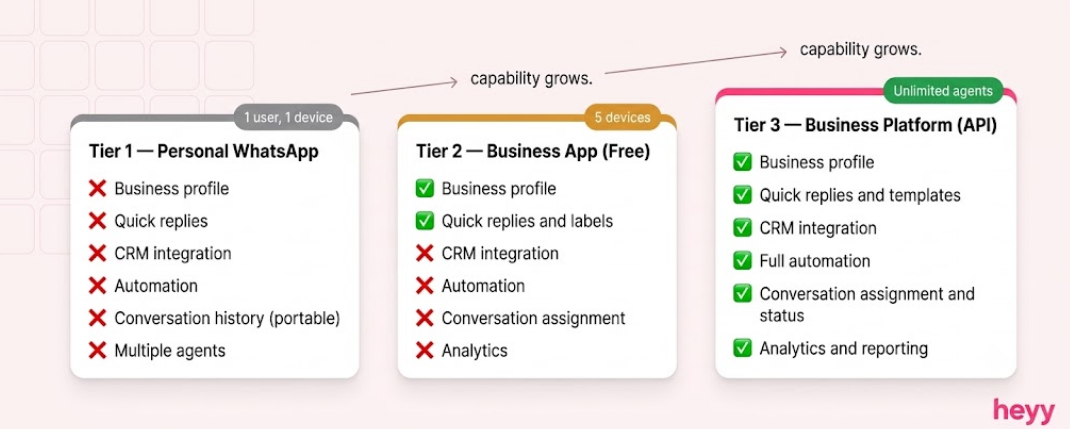
Most guides treat "WhatsApp Business" as one thing. It’s three things, and choosing the wrong one creates the exact problems I described above.
Tier 1: Personal WhatsApp
Using a personal WhatsApp number for business support. No business features, no shared access, no API. Messages live on one phone. When that phone is unavailable or that person leaves, so does the conversation history.
This is a starting point that most businesses should have already moved beyond.
Tier 2: WhatsApp Business App (Free)
The dedicated business app. Better than personal WhatsApp, includes a business profile, quick replies, away messages, labels for organizing chats, and a basic product catalog.
Works for a single operator handling low to moderate volume. Supports up to 5 linked devices via the multi-device feature, but those devices share access rather than dividing work. There is no conversation assignment, no agent performance tracking, no CRM integration, and no automation beyond templated quick replies.
This is where most small businesses plateau. The moment you have two agents who need to divide conversations, or when you need a record of what was said to which customer, the free app runs out of capability.
Tier 3: WhatsApp Business Platform (the API)
The API layer. Not an app you download. A connection between your WhatsApp Business number and the software you use to manage support.
With the API, unlimited agents can access the same number through your connected platform. Every conversation is assigned, tracked, and recorded. Automation runs on top of the inbox. CRM integrations sync contact data. Analytics measure response time, resolution rate, and agent performance.
This is WhatsApp Business customer service configured for a team.
Step-by-Step: Setting Up WhatsApp Business for Support
If you are starting with the Business App (Tier 2):
Step 1: Download the WhatsApp Business App.
Available on Android and iOS. Use a number dedicated to your business. Do not use a number that is already registered to personal WhatsApp or a previous business account.
Step 2: Build your business profile.
Complete every field: business name, category, description, address, email, website, and business hours. A complete profile builds the legitimacy that is required for customers to gain your trust.
Step 3: Set up your Away Message and Greeting Message.
Away Message fires outside business hours. Greeting Message fires the first time a new contact messages you. Both should do two things: acknowledge the message and set a specific expectation. Not "we will be in touch soon." Say "our team responds within 2 hours during business hours" with the actual hours listed. Specific commitments outperform vague reassurances every time.
Step 4: Build your Quick Reply library.
Quick Replies are canned responses triggered by a keyboard shortcut. Build at least 10 for your most common support queries: order status requests, return policy, shipping timelines, payment confirmation, and escalation to a human. These save time per interaction, and at 50 interactions per day, the cumulative saving is significant.
Step 5: Label your conversations.
WhatsApp Business labels (New Customer, Pending Reply, Resolved, VIP, Escalation) are the closest equivalent to ticket status in the free app. Use them consistently from day one. A conversation without a label is a conversation without status. You cannot manage what you cannot see.
WhatsApp Business customer service at the free-app tier is limited but functional for solo operators. The moment you have two agents dividing work, move to the API.
If you are ready for the Business Platform (Tier 3 / API):
Step 1: Create a verified Meta Business Account.
Go to business.facebook.com. Create your Business Account if you do not already have one. This is the container that holds your WhatsApp Business Number, your message templates, and your BSP connection.
Step 2: Apply through a Business Solution Provider (BSP) or directly via Heyy.
The API is not a direct download. Access is granted through a BSP. Most modern support platforms (including Heyy) manage the BSP layer so you do not have to work with Meta's technical infrastructure directly. The approval and verification process typically takes 24 to 72 hours.
Step 3: Verify your business phone number.
The number you register cannot be linked to an existing personal WhatsApp or WhatsApp Business App account. You will receive a 6-digit verification code by SMS or phone call. Once verified, that number is connected to the API and your connected platform.
Step 4: Submit your WhatsApp message templates for Meta approval.
Templates are required for any message your business initiates outside of a customer-initiated 24-hour window. Write templates for: order confirmations, shipping updates, appointment reminders, follow-ups on unresolved tickets, and re-engagement after a conversation goes quiet.
Meta reviews templates for policy compliance. Approval typically takes 24 to 48 hours when templates follow the content guidelines. The most common rejection reasons are: missing business identification in the message, content that resembles unsolicited marketing rather than transactional communication, and templates with no clear customer value.
Step 5: Connect to your support platform and configure your inbox.
Your connected platform (Heyy, your CRM, or your helpdesk) receives incoming messages and lets agents manage them. Set up conversation routing (which types of messages go to which agent or team), configure saved views (so each agent sees only their assigned queue), and set SLA timers so no conversation ages silently.
Step 6: Test the full flow before going live.
Send a test message from a secondary number. Confirm the routing fires correctly, the message appears in the right agent's view, and the reply delivers. Then test the suppression logic: if a message is marked resolved, verify that the follow-up automation stops.
WhatsApp Support Automation: What to Build First

This is where most setup guides stop too early. Connecting the API is the foundation. The automation layer is where the leverage is.
WhatsApp support automation is not one switch you flip. It is three layers you build in sequence.
Layer 1: Immediate acknowledgment (fires within 3 seconds).
The moment a customer messages, an automated reply acknowledges receipt and sets a specific expectation. A first response time over 5 minutes reduces conversion likelihood by 80%, per Stealth Agents' 2026 benchmark compilation. An auto-acknowledgment stops that clock. It is the single fastest improvement you can make and takes 20 minutes to configure.
Layer 2: Top query deflection (handles 40 to 60% of volume).
Build AI-trained responses for your 8 to 12 highest-volume query categories. For most businesses, these are: order tracking, return policy, product availability, payment confirmation, appointment scheduling, and shipping timelines. An AI trained on your actual policies and catalog handles these without a human involved. The agent who used to answer "what is your return policy" for the 30th time this week now handles the complex queries that actually require judgment.
For a complete walk-through of how to structure these automation layers, the WhatsApp automation setup guide covers the full configuration from trigger logic to handoff design.
Layer 3: Intelligent routing and escalation.
Conversations that contain specific keywords (complaint, urgent, refund, manager) automatically escalate to a senior agent or supervisor. High-value customer segments route differently than new contacts. After-hours queries enter a holding flow with a committed callback window rather than sitting unanswered.
The goal is not to automate everything. It is to automate the predictable so your humans can handle the unpredictable. For how this applies across WhatsApp and other channels simultaneously, the guide to automating support across channels covers the cross-channel architecture.
WhatsApp Business Platform for Support: Features You Should Actually Use
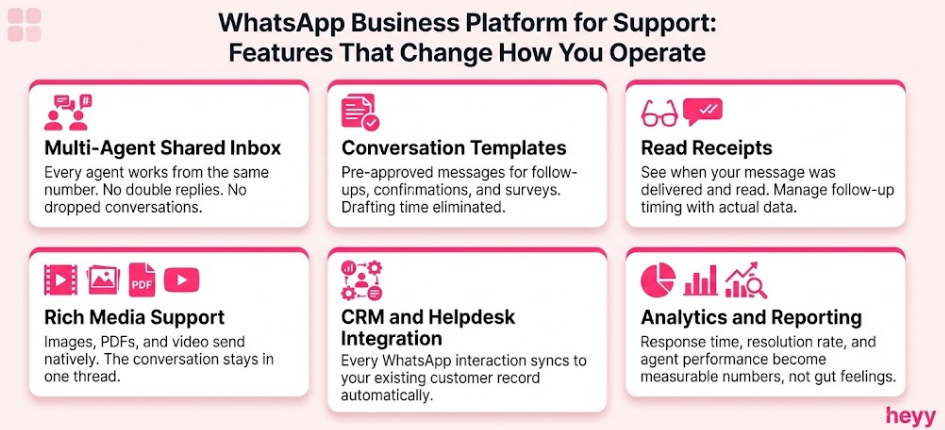
The API unlocks capabilities the free app cannot offer. These are the ones that change how a support team operates.
Multi-agent shared inbox: Every agent works from the same number in the same platform. Conversations are assigned, claimed, and tracked. Nothing falls through because everyone assumed someone else handled it.
Conversation templates: Pre-approved message templates let your team start consistent, compliant conversations without writing from scratch every time. Templates for ticket follow-ups, resolution confirmations, and satisfaction surveys eliminate the drafting time that most teams waste on routine communications.
Read receipts and delivery confirmation: You can see when your message was delivered and when it was read. For time-sensitive support queries (order issues, payment problems), knowing whether the customer has seen your reply changes how you manage the follow-up timeline.
Rich media support:Images, PDFs, videos, and documents send and receive natively. A customer who sends a photo of a damaged product gets an acknowledgment that shows you have actually seen the image. A return instructions PDF attaches directly in the chat. The conversation stays in one place.
Integration with your existing tools: Through the API, WhatsApp conversations sync with your CRM, your helpdesk tickets, your analytics dashboard, and your customer records. Every interaction builds a customer history rather than living in an isolated inbox.
For more on how to push this further with AI-powered sales and support agents built on top of the API, the guide to building a WhatsApp sales agent covers the architecture in detail.
What Not to Do
I see the same mistakes in almost every setup I audit.
Using personal numbers for business support: Covered above. Beyond the data loss risk, it creates a liability: when that employee leaves, the customer relationship leaves with them. Use a dedicated business number from day one.
Skipping the business profile: An incomplete profile means no verified business name, no hours, no description. Customers who message an unverified number they do not recognize are less likely to engage and more likely to report it.
Automating before you understand your query types: I have seen teams build elaborate automation flows before pulling their ticket data to understand what customers actually ask. The result is automation that handles queries that were never common and misses the ones that represent 60% of volume. Pull 90 days of query data first. Automate the top categories.
Treating the free app and the API as interchangeable: If your team has two or more agents and your support volume is growing, you need the API. Running two agents through the free Business App produces exactly the double-reply, missed-message problems described at the start of this post.
Building the automation before configuring the handoff: The moment automation reaches the edge of what it can handle, a human needs to pick up the conversation. If the handoff to a human agent does not preserve the conversation context, the customer has to repeat themselves. Configure the handoff before you go live.
For a broader framework on how to automate customer service end-to-end, that guide covers the decision logic for what to automate and what to keep human.
The fashion brand I mentioned at the start now runs WhatsApp Business Platform for support. Four agents in one shared inbox with every conversation assigned. Every promise recorded. When a customer comes back three months later with a follow-up, any agent can see exactly what was said, what was resolved, and what is still open.
All thanks to a change in operation that technology enables.
For teams ready to configure WhatsApp Business customer service with AI automation, shared inbox, and multi-channel support from one platform, Heyy manages the API connection, the inbox, the automation layer, and the analytics in one place. Start free and set up your first WhatsApp support flow today.
FAQs
Can I have multiple WhatsApp Business numbers for different departments?
Yes. Each number requires its own WhatsApp Business Account and its own API connection. Some businesses run a separate number for sales, support, and logistics, each routed to a different team through the same connected platform. Whether this makes sense for you depends on volume and whether your customers benefit from knowing which team they are reaching. For most SMBs, one number with smart routing handles all three without the complexity of managing multiple accounts.
What is the difference between a WhatsApp Business Profile and a WhatsApp Business Account?
Your Business Profile is what customers see: the name, logo, hours, description, and website URL. Your WhatsApp Business Account is the technical entity in Meta's Business Manager that holds your number, your connected BSP, your message templates, and your API credentials. You need both. The profile is customer-facing. The account is the infrastructure that everything else connects to.
Do I need a green tick (verified badge) to run effective WhatsApp customer support?
Not for operations. The green tick is a Meta-verified status that confirms your account is the official account of a known business. It builds trust for large brands with significant public recognition. For most SMBs, a complete business profile with accurate information is sufficient. Customers are not looking for the green tick on a local service business. They are looking for fast, helpful responses. The green tick verification process is separate from API access and requires a formal application to Meta after your account is operational.
What happens to ongoing support conversations when a customer opts out of WhatsApp messaging?
An opt-out (STOP message or block) stops you from sending template messages to that customer. If the customer initiates contact again, a new 24-hour service window opens. Open support tickets connected to that customer should be flagged in your CRM with the opt-out status so agents do not attempt outbound contact through WhatsApp. Most modern support platforms handle this automatically when the opt-out event syncs from the API.
How should I handle customer support on WhatsApp outside business hours?
Configure a two-step after-hours flow. The first message acknowledges receipt and gives a specific callback window: "We received your message. Our support team replies between [hours]. You will hear from us by [specific time]." The second step depends on urgency: critical issues (order problems, payment disputes) trigger an alert to an on-call agent. Standard queries sit in queue and are handled first thing in the morning. Automation can handle a significant portion of common after-hours queries without any human involvement. 73% of businesses report higher CSAT after deploying WhatsApp, and after-hours automation is one of the most consistent drivers of that improvement.
More blog posts to read

Ready to Automate Support
Across Every Channel?
.svg)
.avif)