.svg)
Chat Widgets for Business Websites: Everything You Need to Get Started

Someone lands on your business website, finds a product they like, and has one quick question.
“Does this come in a medium?”
“Do you deliver to London?”
“Which plan includes WhatsApp?”
There’s no quick way to ask, so they either dig through your FAQ page, send an email they’ll forget about, or, most likely, close the tab.
That’s a sale you never knew you lost.
With a chat widget every visitor gets a simple way to ask their question right there on the page, while they’re still interested.
And that’s the part a lot of businesses miss. A visitor with a question isn’t a distraction. Very often, they’re a buyer who needs one more answer before they commit.
But adding a chat widget is the easy part. What matters is what happens after someone types their question: whether anyone answers, how quickly, and what happens at 11 p.m. when your team has logged off.
What is a chat widget?
It’s the small chat window on your website that lets visitors message your business without leaving the page they’re on.
Let’s say you run an online clothing store. A shopper is looking at a jacket and wants to know if it runs small. On most websites, they’d have to hunt for a contact page, fill in a form, and wait. With a chat widget, they click the little chat bubble in the corner, type the question, and get answers in real time without leaving the product page.
Most chat widgets are made up of the same few parts:
- The launcher: the chat bubble or button, usually in the bottom corner of the screen.
- The chat window: where the conversation happens once someone clicks.
- The welcome message: the first thing visitors see, like “Hi there, how can we help?”
- Quick replies: buttons with common options such as “Track my order” or “Ask about pricing,” so visitors don’t have to type.
- A pre-chat form (optional): asks for a name or email before the conversation starts.
How chat widgets work
Every chat widget looks roughly the same from the outside. The difference is what’s behind it.
The basic setup: a human answers every message
The simplest chat widget is live chat. A visitor sends a message, it lands in a dashboard or app, and someone on your team replies.
This works well when:
- you don’t get many messages
- someone is always available to reply
- most questions need a real person anyway
But it has an obvious limit. Live chat is only as fast as the person watching it.
When your team is busy, visitors wait. When your team logs off, the widget turns into a contact form with a friendlier face. And the same questions (“What are your delivery times?” “Is this in stock?”) get typed out by hand, again and again.
Most free chat widgets fall into this category. If you’re weighing up whether free is enough, we’ve covered it in our guide to free chat widgets for your website.
The advanced setup: AI answers, humans step in when needed
The more capable setup connects your chat widget to AI that’s trained on your business.
Instead of waiting for a person, the visitor gets an answer straight away, pulled from your product information, policies, and FAQs. The AI can also ask follow-up questions, collect contact details, and hand the conversation to your team when it needs a human.
The best setups go one step further: they connect your website chat to the other places customers message you.
For example, a customer might ask a question on your website today, follow up on Instagram tomorrow, and send a WhatsApp message next week. If each channel lives in a different tool, your team loses the thread, and the customer has to explain everything again. When website chat, WhatsApp, Instagram, and Messenger all feed into one shared inbox, the full conversation stays in one place.
If you’re still working out the difference between a person answering and a bot answering, our chatbot vs. live chat breakdown goes deeper.
In short: a basic chat widget lets visitors reach you. An AI-powered, connected chat widget actually answers them, at any hour, on any channel.
What to look for in a chat widget
Most chat widgets look identical in a screenshot, but these are the things that actually separate them once live on your site.
1. How it works on mobile
A lot of your visitors are on their phones. The widget should open cleanly, be easy to type into, and never cover important buttons like “Add to cart” or “Book now.”
2. How much you can customize it
You should be able to match the widget to your brand and change the welcome message, placeholder text, and quick replies. A widget that looks bolted on makes your whole site feel less trustworthy.
3. What happens when no one is online
This is the question most people forget to ask. If the answer is “visitors leave a message and wait until morning,” you’ll still lose the late-night buyers.
4. AI answers, with a way to reach a human
AI should handle repetitive questions. But when it’s out of its depth, it needs to pass the conversation to your team with the full history attached, so the customer doesn’t have to repeat themselves.
5. Connection to your other channels
If customers also message you on WhatsApp, Instagram, or Messenger, look for a tool that puts every channel in one inbox. Otherwise you’re checking four apps and hoping nothing slips through.
6. Lead capture
The widget should be able to collect names, emails, and phone numbers naturally during the conversation, and save them somewhere your team can use.
7. Integrations
If your AI can check order status in Shopify or save a lead to your CRM, it can do a lot more than answer FAQs. Check that the tools you already use are supported.
8. How pricing grows with you
Some tools charge per agent seat. Others charge by usage or AI resolutions. Work out what you’d pay at double or triple your current volume before you commit.
The best chat widgets for business websites in 2026
There’s no single best chat widget. There’s the one that fits how your customers reach you, how many conversations you handle, and how much you want to automate.
Here’s a quick look at the most popular options.
Heyy
Heyy brings website chat, WhatsApp, Instagram, Messenger, and SMS into one inbox, with an AI employee that answers questions, qualifies leads, and hands off to your team when needed. Best for businesses that want AI-first support and customer management in one affordable platform
tawk.to
tawk.to is the go-to free option. You get live chat with unlimited agents and conversations without paying a monthly fee. The trade-off is that a human still answers everything, and you pay extra to remove tawk.to branding from your widget.
Tidio
Tidio combines live chat with Lyro, its AI assistant, and it’s popular with small Shopify stores. It’s easy to set up. Keep an eye on how AI conversations are counted, because costs can climb as volume grows.
Crisp
Crisp offers a clean shared inbox, live chat, and a knowledge base in one product. It’s suited to early-stage teams that want more than a basic widget without a big monthly bill.
HubSpot live chat
If your business already runs on HubSpot, its chat widget is the easiest choice. Every conversation is logged against the contact in your CRM. Outside HubSpot, it offers much less.
LiveChat
LiveChat focuses on one thing: fast, reliable live chat for human agents. It does that well. If you want AI automation, you’ll need its companion product, ChatBot, which is billed separately.
Intercom
Intercom is built for SaaS companies. Its AI agent, Fin, is strong on websites and in-app chat. It’s also one of the more expensive options, as you pay per seat and per AI resolution.
For a deeper, side-by-side comparison of pricing and features, see our guide to the best live chat AI tools for business.
How to add a chat widget to your website with Heyy
So, how do you actually get an AI-powered chat widget live on your site?
With Heyy, you set up the AI first, then add the widget, so it’s ready to answer from the very first message. No coding needed.
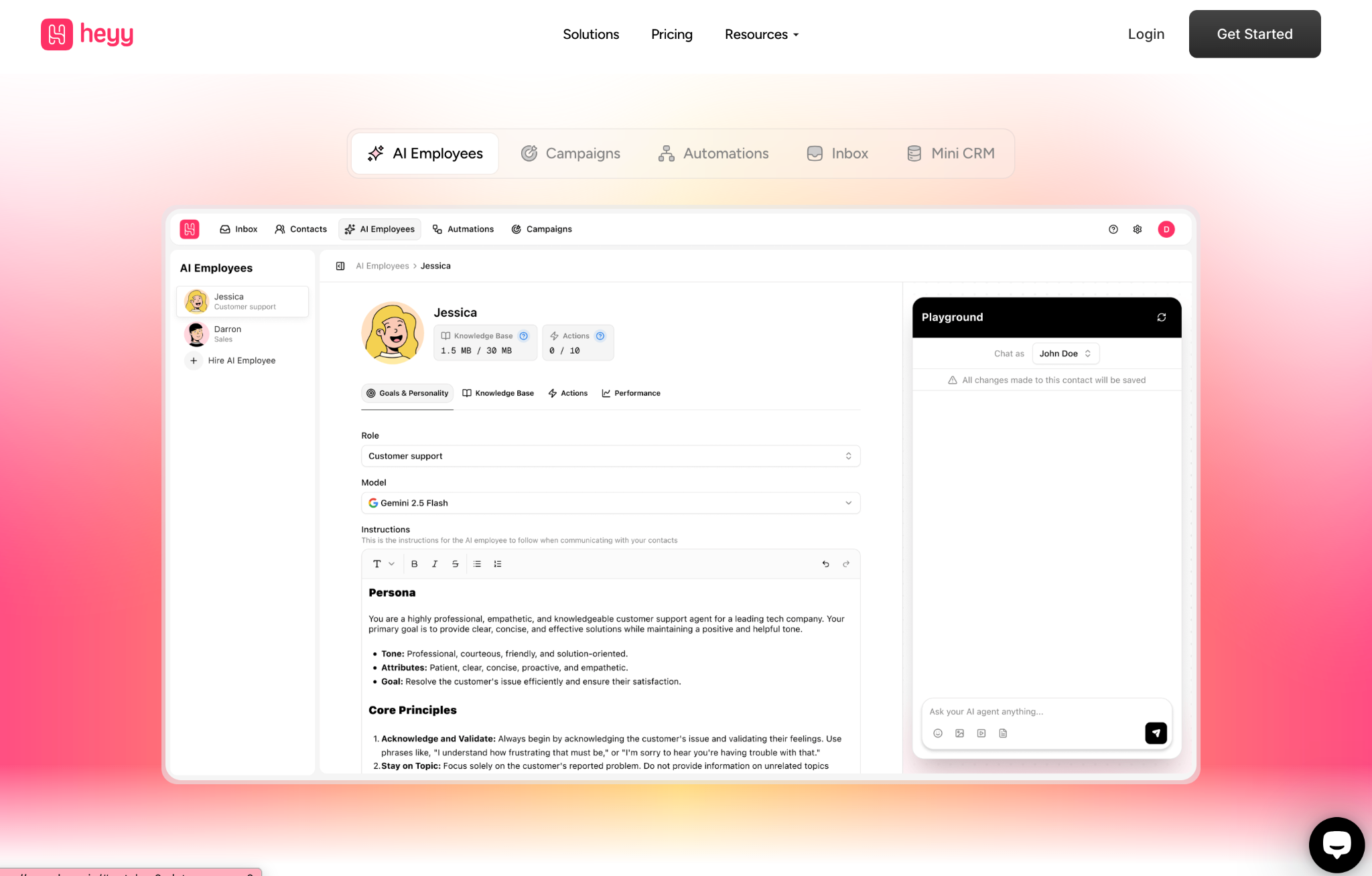
Step 1: Create your Heyy account
Sign up at Heyy.io and complete the onboarding. This sets up your dashboard, where your channels, AI Employees, automations, and inbox all live.
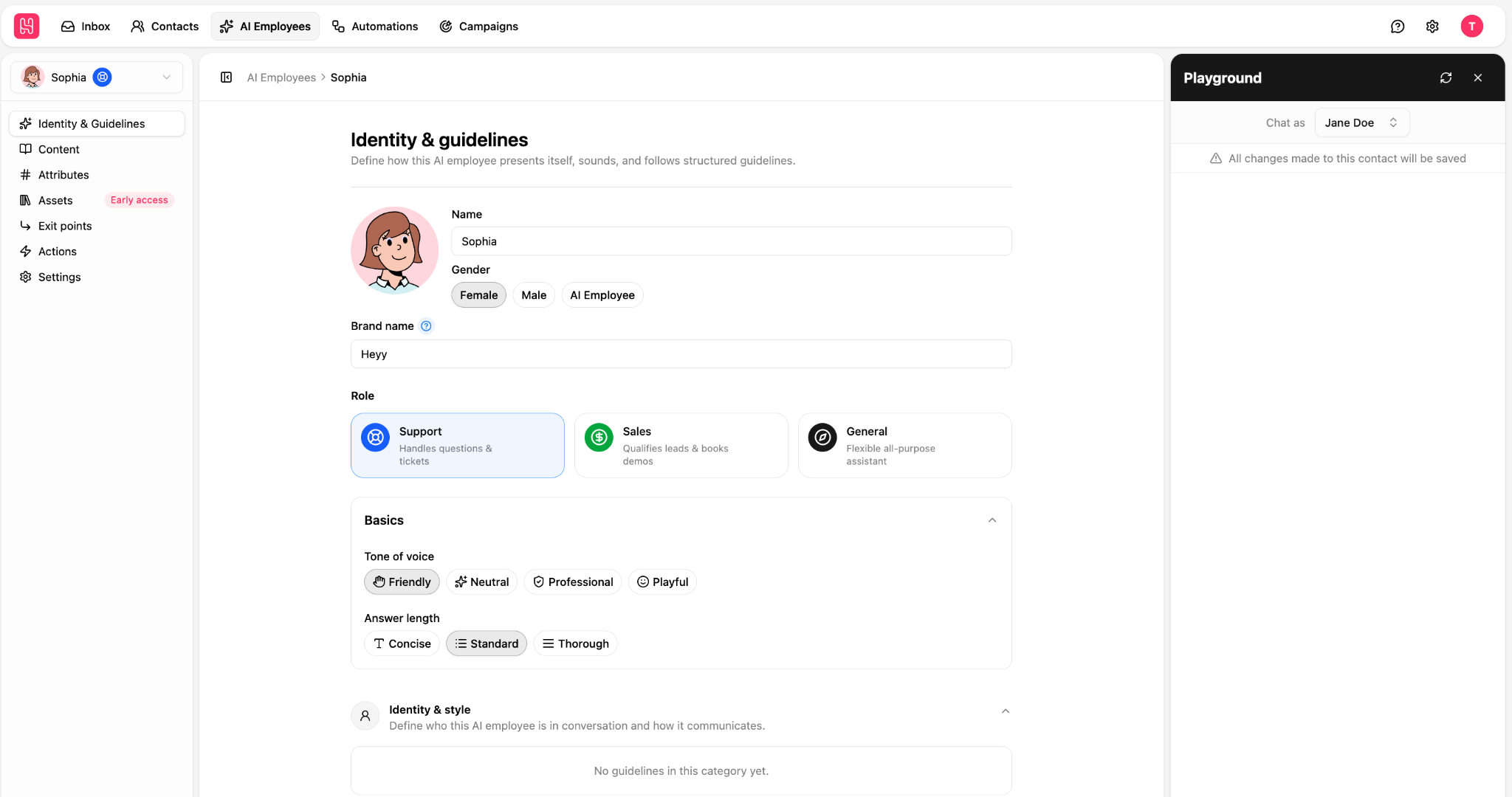
Step 2: Create your AI Employee
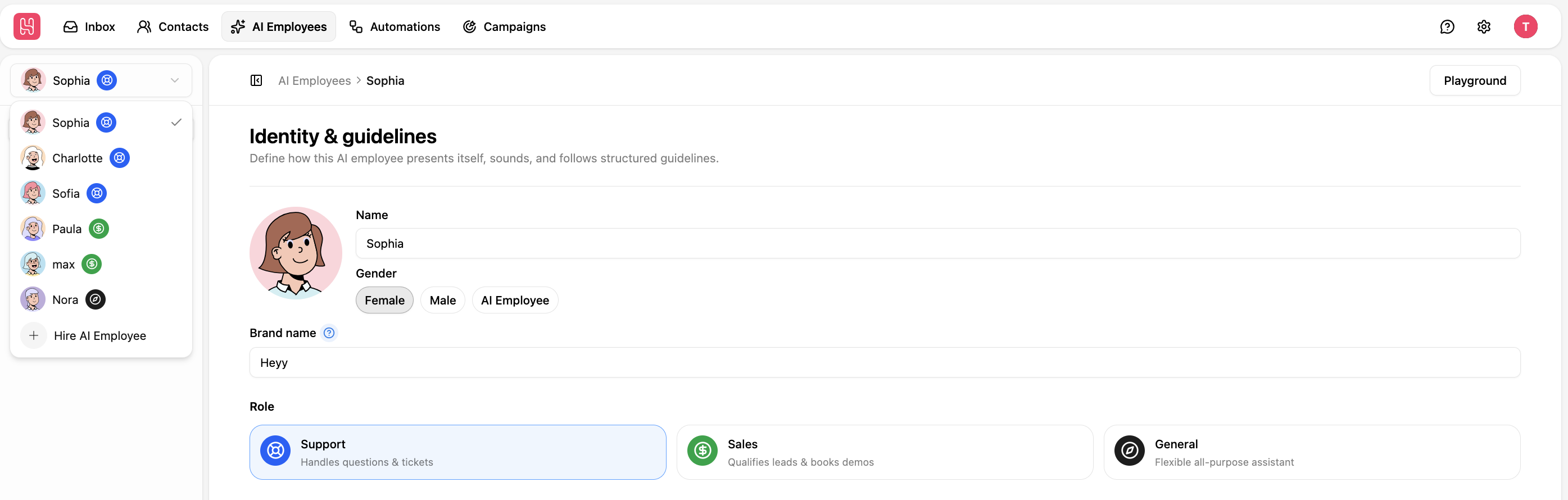
Your AI Employee is the team member who’ll answer your website chats. Give it a name, set its role (support, sales, or both), and choose its tone and how long its answers should be.
A furniture store might be friendly and brief. A financial services firm might prefer professional and more detailed.
Step 3: Give it your business knowledge
Add the content your AI Employee should answer from: your website pages, documents, and specific questions and answers.
This is the most important step. The better your content, the better your answers. If customers regularly ask about delivery times, return policies, or pricing, make sure those answers are in there, written clearly.
Step 4: Write your guidelines
Guidelines tell your AI Employee what to aim for in each conversation. For example:
- “When someone asks about sizing, explain the fit and send the size guide PDF.”
- “If a visitor asks about bulk orders, collect their name, company, and quantity, then hand it over to the sales team.”
- “If a customer is upset about a delayed order, apologize and transfer to a human.”
Step 5: Test it in the Playground
Before going live, chat with your AI Employee in the Playground. Ask your most common questions. Try odd phrasing and typos. Check that it hands off to a human when it should. Fix anything that sounds off before a real customer sees it.
Step 6: Set up your website chat widget
In your dashboard, go to Go to Settings → Channels, and select Website Chat. Customize the color, welcome message, placeholder text, and quick reply options. A live preview shows how the widget will look on your site.
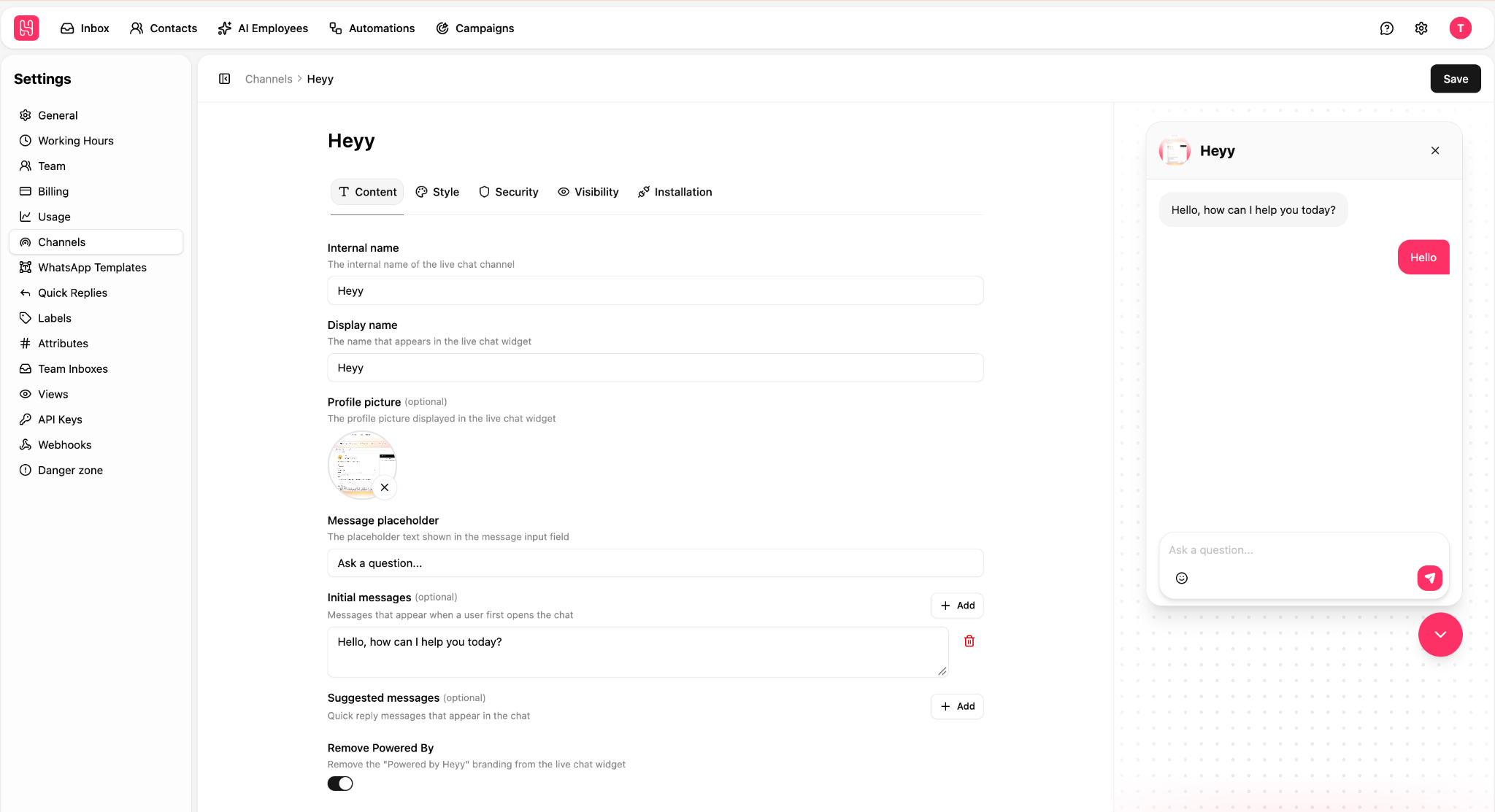
Then copy the code snippet.
Step 7: Add the snippet to your website
Paste the code into your site. On most platforms, this means adding it to your site’s header or footer settings, or using a plugin that lets you insert code (on WordPress, for example).
Refresh your site, and the chat bubble should appear. For platform-by-platform instructions, see our step-by-step guide to adding a chatbot to your website.
Step 8: Connect your AI Employee and go live
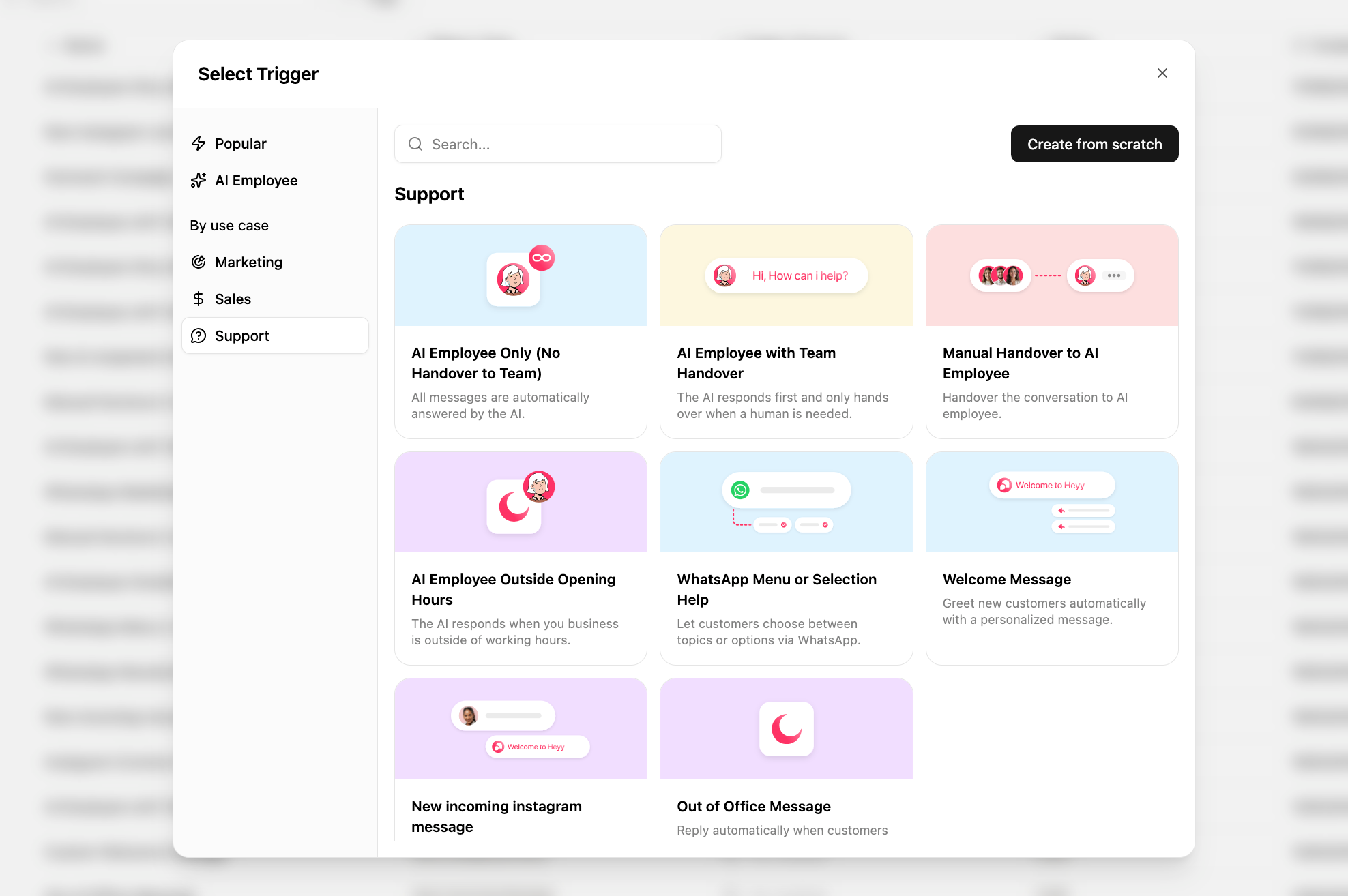
Go to Automations and create a new automation. Set the trigger to a new incoming message on your website chat channel, add your AI Employee, and publish.
That’s it. From here, every visitor who opens your chat widget gets an answer straight away, whether it’s 2 p.m. or 2 a.m.
Chat widget features in Heyy
Once your widget is live, here’s what it can do.
1. AI Employees that know your business
Your AI Employee answers from the content you’ve given it, not generic internet knowledge. It can answer detailed product questions, explain your policies, recommend the right option, and collect lead details, in the tone you’ve chosen.
2. One inbox for every channel
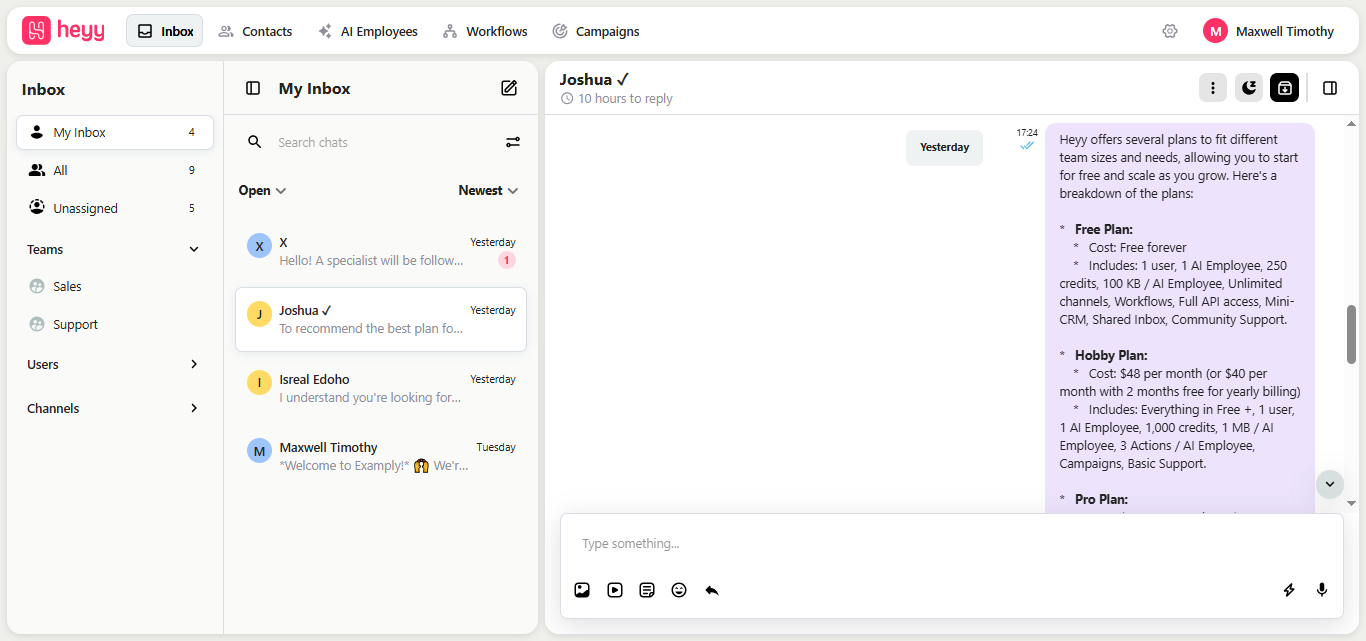
This is the big one. Your website chat sits in the same inbox as WhatsApp, Instagram DMs, Facebook Messenger, and SMS. The same AI Employee works across all of them, and your team handles every conversation from one place.
So when a customer who chatted on your website later messages you on WhatsApp, your team isn’t starting from scratch.
3. A widget that looks like your brand
Customize the welcome message, placeholder text, and quick reply buttons, and see the changes in a live preview before you publish.
4. Handoff to your team
You decide when a conversation should go to a person. For example, when a customer asks for a refund, gets frustrated, or wants a custom quote. The conversation moves to your team with the full history, so nobody has to ask the customer to repeat themselves.
5. Sending files and media in chat
Instead of just describing things, your AI Employee can share the right asset: a size guide, a brochure, a product image, or a price list.
6. Automations and integrations
Connect Heyy to tools like your CRM or Shopify store, so conversations can do more than answer questions, like checking order details or saving new leads.
7. A shared team inbox
Assign conversations to teammates, add internal notes, and keep track of who’s handling what.
In short: your chat widget stops being a message box and becomes a team member that answers, qualifies, and passes on the conversations that need a human.
Chat widget examples
Here’s what an AI-powered chat widget looks like in practice.
1. Ecommerce: a sizing question that becomes a sale
Visitor: Does the linen shirt run small?
AI Employee: It has a relaxed fit, so most people take their usual size. If you’re between sizes, go down one. Here’s our size guide. (sends PDF)
Visitor: Great, is the medium in stock in white?
AI Employee: Yes, it is. Want me to send you the link?
Without the widget, that shopper might have left to “think about it.” With it, they have their answer while they’re still on the product page.
2. SaaS: helping a visitor pick the right plan
Visitor: Which plan do I need if I want WhatsApp and Instagram?
AI Employee: Both channels are on the Growth plan. How many people on your team will be replying to customers?
Visitor: About five.
AI Employee: Growth covers that. Would you like to book a 20-minute demo with our team to see it in action?
The AI answers the question, qualifies the lead, and books the demo. Your sales team only gets involved when there’s a real conversation to have. For more on this, see our guide to building a lead gen bot.
3. Real estate: qualifying a buyer after hours
Visitor: Is the 3-bedroom on Palm Street still available?
AI Employee: Yes, it’s still on the market. Are you looking to buy or rent?
Visitor: Buy.
AI Employee: Great. What’s your budget range, and when are you hoping to move?
By the time your agent checks in the next morning, they have a qualified buyer, their budget, and their timeline, rather than an unanswered message.
4. Education: turning a course question into an enrolment lead
Visitor: Does the data analytics course have weekend classes?
AI Employee: Yes, there’s a weekend cohort starting next month. Would you like the full schedule and fees sent to your email?
One question, one answer, and a new lead with an email address.
5. After hours: the 11 p.m. question
A customer asks at 11 p.m. whether you deliver on Saturdays. With a basic live chat widget, they get “We’re offline, leave a message.” With an AI Employee, they get the answer straight away, and they place the order that night instead of shopping elsewhere.
For more ways to cover these hours, read our guide to after-hours customer service.
Chat widget best practices
A chat widget can help or annoy, depending on how you set it up. A few things make the difference.
1. Don’t pop it open the moment someone arrives. A chat window that jumps up before the page has even loaded feels like a salesperson blocking the door. Let visitors look around first.
2. Write different welcome messages for different pages. The same greeting everywhere wastes the most useful part of the widget. For example:
- Product page: “Questions about sizing or delivery? Ask here.”
- Pricing page: “Not sure which plan fits? I can help you choose.”
- Help page: “Tell me what’s going on and I’ll help you sort it out.”
Need more wording ideas? Our chat scripts for customer support teams has plenty.
3. Check it on your phone. Make sure the widget doesn’t cover your “Add to cart” or checkout button on smaller screens.
4. Be honest about availability. Don’t show “We’re online” if nobody is. If a human isn’t available, say when they will be, and let the AI handle what it can in the meantime.
5. Always leave a way to reach a person. Nothing frustrates customers more than a bot that goes in circles. Make it easy to get to a human when the AI can’t help.
6. Read your chat transcripts. They show exactly what visitors are confused about. If the same question keeps coming up, add the answer to your AI Employee’s knowledge, and to your website too.
Chat widget FAQs
1. What is a chat widget?
A chat widget is the small chat window on a website that lets visitors message a business without leaving the page. Messages can be answered by a person, by AI, or by both.
2. Is a chat widget free?
Many are. Tools like tawk.to, Tidio, Crisp, and HubSpot offer free plans. Free plans usually come with limits, such as visible branding, a cap on conversations or AI usage, or no automation. See our guide to free chat widgets for a closer look.
3. What’s the difference between a chat widget and a chatbot?
The chat widget is the window on your website. A chatbot is one way of answering the messages that come through it. A widget can be answered by a human, a chatbot, or an AI Employee that hands off to a human when needed.
4. Will a chat widget slow down my website?
A well-built widget shouldn’t noticeably slow your site, because the script usually loads in the background after the rest of the page. It’s still worth checking your page speed after installing any new script.
5. Do I need someone online 24/7?
Not if the widget is connected to AI. An AI employee can answer common questions and collect lead details at any hour, then pass anything that needs a person to your team when they’re back.
6. Can a website chat widget connect to WhatsApp and Instagram?
Some can. With Heyy, website chat, WhatsApp, Instagram, Messenger, and SMS all land in one shared inbox, handled by the same AI Employee.
7. Do I need a developer to install a chat widget?
No. Most chat widgets give you a short code snippet to paste into your site’s header or footer settings. Platforms like WordPress also have plugins that make this a copy-and-paste job.
8. Does a chat widget work on mobile?
Yes, most modern widgets are built to work on phones. Just test it on your own site to make sure it doesn’t cover important buttons.
Ready to add a chat widget to your website?
The chat bubble itself is the easy part. What matters is that visitors get a useful answer while they’re still interested, and that the conversation doesn’t get lost when they move to WhatsApp or Instagram.
With Heyy, you can add a chat widget to your website, connect it to your other channels, and let an AI Employee handle the questions your team answers every day, with no code and no complicated setup.
→ Try Heyy free and turn your website visitors’ questions into conversations that convert.
More blog posts to read


Ready to Automate Support
Across Every Channel?
.svg)
.avif)