.svg)
Build a WhatsApp Chatbot for Free: A Step-by-Step Guide


A restaurant owner came to me after spending three hours watching tutorials about free WhatsApp chatbot builders. She had tried four tools. Three of them required a paid plan to actually connect to WhatsApp. The fourth connected, but capped outbound messages at 80 per month. Her lunch rush alone generates 40 WhatsApp orders.
When I sat down with her, we had a functional first chatbot flow running in 28 minutes. She was on the free plan the whole time.
The tools were not the problem. She was looking in the wrong places.
The promise of a free WhatsApp chatbot is real. But the definition of "free" varies wildly across platforms, and most of the content about it does not tell you that up front. This guide does. Here is exactly what it takes to create a WhatsApp chatbot for free, what free actually covers, and the step-by-step build you can start today.
What "Free" Actually Means for WhatsApp Chatbots
This is the part most guides skip.
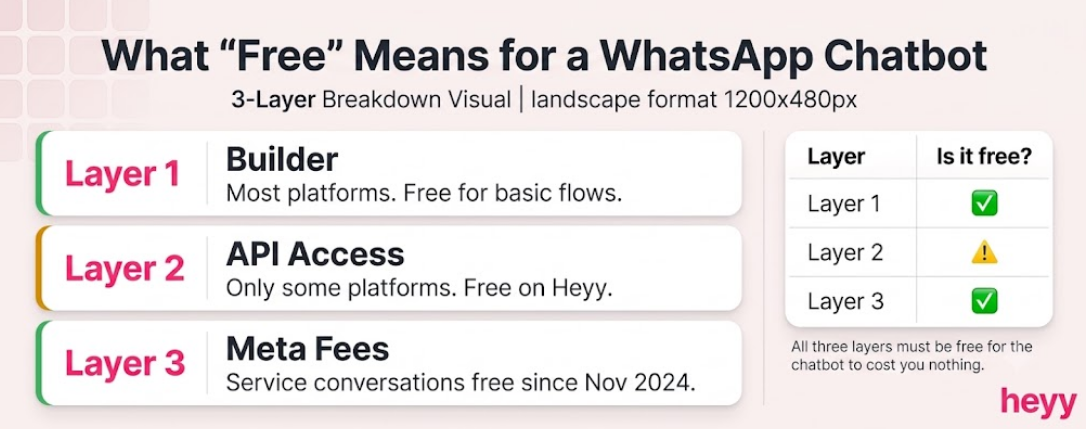
There are three layers to a WhatsApp chatbot setup, and "free" can refer to any one of them while the others cost money.
Layer 1: The builder tool: The visual editor where you design your conversation flows. Many platforms offer a free builder tier with limited flows or conversation volumes.
Layer 2: WhatsApp Business API access: This is the infrastructure that connects your chatbot to WhatsApp. Without API access, no chatbot can send or receive automated WhatsApp messages. The free WhatsApp Business App includes very basic automation. Everything beyond quick replies and away messages requires the API.
Layer 3: Meta's per-conversation fees: Meta charges per conversation for certain message types. Service conversations (customer-initiated) became free in November 2024. Marketing, utility, and authentication conversations still carry a per-conversation charge based on the recipient's country. For most support and lead generation bots, service conversations are the primary message type, which means the Meta fee layer is free.
The platforms that are genuinely free to start: Tools where the builder, the API connection, and the incoming service conversation handling are all included in a free tier. Heyy is one of them. The free plan includes WhatsApp connection, Instagram, Facebook Messenger, and website chat without requiring a credit card or a trial that expires. For a full comparison of which platforms offer what at which price, the best WhatsApp automation tools guide maps the field in detail.
The platforms that appear free but are not: Tools that offer a free builder but require a paid plan to activate WhatsApp. You can design the flows at no cost, but they sit disconnected until you upgrade.
Know which type you are evaluating before you start building.
What You Need Before You Start
Three things. None of them require payment.
1. A WhatsApp Business account or a Business phone number.
If you have the free WhatsApp Business App installed on a phone, you already have the foundation. If you want to connect to the API (which you do for a real chatbot), you will need a phone number that is not currently active on personal WhatsApp or the free Business App. The API and the app cannot run on the same number simultaneously.
2. A Meta Business Account.
Go to business.facebook.com and create a verified business account if you do not have one. This is where your WhatsApp number, your approved message templates, and your API connection live. Verification takes 5 to 10 minutes for most businesses.
3. A clear list of your 5 most common customer messages.
This is the most overlooked step. Before you open any free WhatsApp chatbot builder, write down the five messages you receive most often. For most businesses, these are: pricing questions, order status, availability, appointment requests, and location or hours. These five become your first five automated flows. Every tool becomes faster to use once you know exactly what you are building. If you are still deciding which builder to use, the best chatbot builders comparison covers what to look for before you commit.
Step-by-Step: How to Create a WhatsApp Chatbot for Free
I will walk through this using Heyy because it is the platform I use and the one with the most accessible free tier. The steps translate to any API-connected builder.
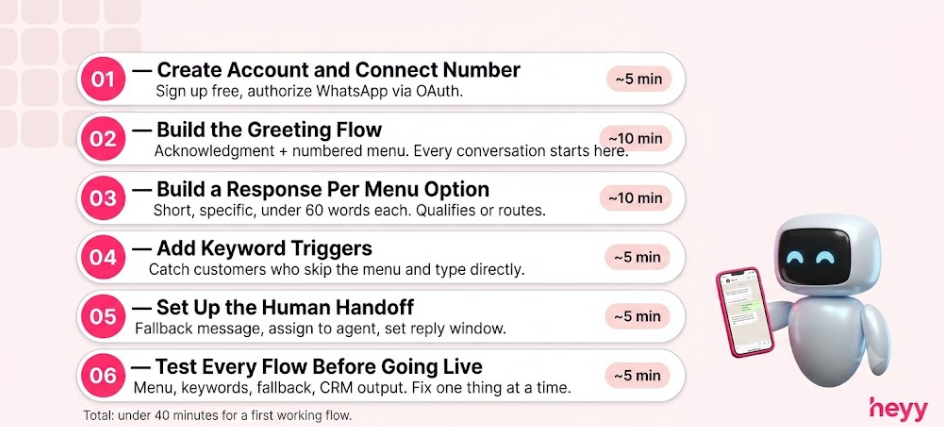
Step 1: Create your free account and connect your WhatsApp number
Go to heyy.io and sign up for the free plan. No credit card required. Inside the dashboard, click "Connect a channel" and select WhatsApp.
You will go through the OAuth flow with Meta, which authorizes Heyy to connect to your WhatsApp Business number. This takes 3 to 5 minutes. Once authorized, incoming WhatsApp messages to your number appear in the Heyy inbox immediately.
If you are using a new number (not previously registered with WhatsApp), you will verify it with a 6-digit SMS code during the connection process.
Step 2: Build your greeting flow
The greeting flow is the first thing a customer sees when they message you. It should do three things: acknowledge the message, set an expectation, and give the customer a way to tell you what they need.
In Heyy's flow builder, this looks like:
Message 1 (immediate, automatic): "Hi [First Name]. Thanks for reaching out. I am [Business Name]'s assistant.
What can I help you with today?
Reply with a number:
- Pricing
- Order status
- Book an appointment
- Something else"
This menu approach works better than open-ended questions for a first bot flow. It routes customers to the right response immediately and keeps the conversation structured while the bot is simple.
Step 3: Build a response for each menu option
For each numbered option, create a follow-on message. Keep these short. Under 60 words each.
Example for option 1 (Pricing): "Our pricing depends on what you need. Can you share a few more details?
Tell me: what product or service are you interested in, and roughly how many units or sessions you are looking for?
I will reply with the right pricing or connect you with our team."
This response gets one more piece of qualifying information before routing to a human or providing a direct answer.
Example for option 2 (Order status): "To check your order status, please share your order number. It looks like HEYYXXXX or was sent to you in your confirmation message.
Once I have it, I will pull up your latest update."
Short. Specific. Requests exactly what the bot needs to proceed.
Step 4: Add a keyword trigger alongside the menu
Keyword triggers fire when a customer types a specific word regardless of the menu flow. For a WhatsApp bot without coding, these are the easiest automation to set up and often the highest-converting.
Set a keyword trigger for:
- "pricing" or "price" or "cost" (routes to the pricing response)
- "order" or "track" (routes to the order status response)
- "book" or "appointment" or "schedule" (routes to booking)
This handles the customers who skip the menu and just type what they want directly. Most do.
Step 5: Set up the handoff to a human
Every chatbot needs a fallback. When a customer asks something outside your automated flows, the bot should gracefully route to a human rather than looping or sending a generic "I didn't understand that."
In Heyy's builder, configure a fallback message that:
- Acknowledges the bot could not handle the query
- Tells the customer a human will reply
- Gives a specific timeframe
Example: "This one is beyond what I can handle automatically. I have flagged it for our team and someone will reply within [X hours]. You will hear from us here in this same chat."
The conversation then appears in the team inbox assigned to an available agent.
Step 6: Test before going live
Send a message to your own number from a different phone. Go through every menu option. Type a keyword that should trigger a flow. Type something random that should trigger the fallback. Confirm the right message fires for each.
The most common error at this stage is a keyword that is too specific. If your trigger is set to "exact match: schedule appointment," a customer who types "I want to schedule" will miss it. Use partial matching or add multiple keyword variants for each trigger.
What to Automate First (And What Not To)
The restaurant owner I mentioned at the start made one mistake after setup: she tried to automate everything before validating the basics. She spent two days building a full order-taking flow before checking whether customers would actually use it.
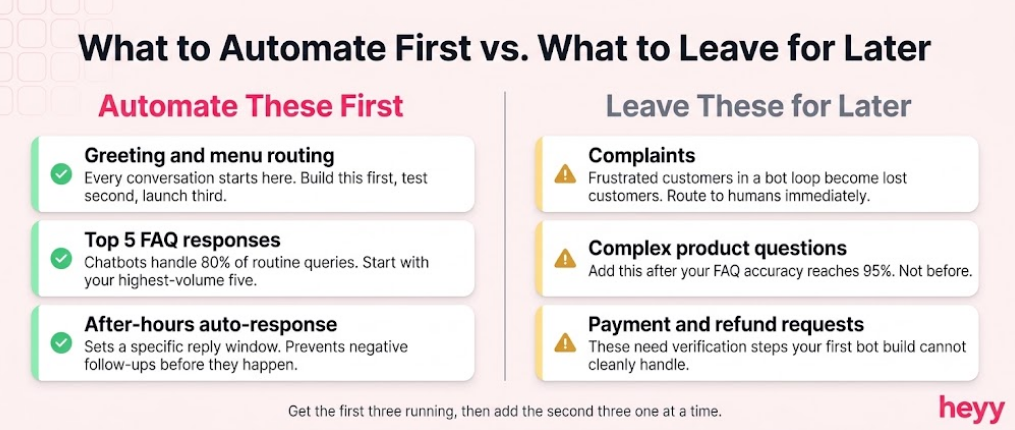
Automate these first:
Greeting and menu routing. Immediate acknowledgment with a menu is the foundational flow. Every customer interaction starts here.
FAQ responses for your top 5 query types. These are the flows that pay for themselves fastest. Chatbots handle 80% of routine customer inquiries and lead qualification time drops by 61% with automated chat workflows, per Marketing LTB's 2026 chatbot statistics. Your top 5 query types are the fastest path to that result. For the full setup logic behind these flows, the complete WhatsApp automation guide covers trigger design and handoff architecture in depth.
After-hours auto-response. A message that acknowledges the customer outside business hours and sets a specific response time expectation. This alone reduces negative follow-ups significantly. Once you have these three foundational flows running, the chatbot marketing strategy guide covers how to connect them to lead generation and campaign funnels.
Do not automate these yet:
Complaints: A customer who is already frustrated and hits a bot loop becomes a customer you lose. Route complaint keywords to humans immediately.
Complex product questions: If the answer changes based on the customer's specific situation, a menu-based bot will get it wrong. Add this after you have a clear enough FAQ that the bot's answer is accurate 95% of the time.
Payment and refund requests: These require verification steps that a first bot build usually cannot handle cleanly. Route them to humans until you have the integration layer set up.
The Three Mistakes That Kill Free WhatsApp Chatbots in Week One
Building before writing: Every builder makes it easy to start placing message blocks without thinking through the conversation. The flows that break most often are the ones where nobody wrote the actual words before opening the editor. Write your five core flows in a document first. Then build.
Forgetting the opt-in requirement: WhatsApp requires explicit customer consent before you can send them automated messages. If you are proactively messaging someone who did not initiate the conversation, you need an opt-in on record. The free plan does not exempt you from this rule. Build your opt-in collection alongside your chatbot, not after.
Not measuring the drop-off point: Every bot has a place where customers stop responding. Check your conversation analytics after the first week. The drop-off point is almost always the message that is too long, too vague, or asks for something the customer does not want to provide at that stage. Fix one thing. Test again.
The 28-minute build with the restaurant owner produced a chatbot that handles several conversations per day during lunch hours without a single human touch on the FAQ and order routing queries. She added a second human shift agent to handle the escalations the bot routes through. The bot did not replace her team. It gave them back hours of their day.
That is what a well-built free WhatsApp chatbot actually does.
Heyy's free plan is live now. WhatsApp, Instagram, Messenger, and website chat connected in one inbox with your first chatbot flow running in under an hour. Start free and build your first flow today.
FAQs
Can I build a WhatsApp bot without coding?
Yes. Every major free WhatsApp chatbot builder is a visual drag-and-drop editor. You design conversation flows by connecting message blocks, setting trigger keywords, and defining routing logic. No code is written at any point. The API connection between the builder and WhatsApp is handled by the platform. If a platform requires you to write code to connect to WhatsApp, move to a different platform.
What is the difference between the WhatsApp Business App and a WhatsApp chatbot?
The WhatsApp Business App includes basic automation: a greeting message, an away message, and quick reply templates. These fire based on fixed triggers (first message from a new contact, or no response from the business in a set time). A WhatsApp chatbot adds keyword triggers, multi-step conversation flows, menu routing, lead capture, CRM integration, and 24/7 response capability. The Business App is one-way automation. A chatbot is a two-way conversational system that adapts based on what the customer says.
How many conversations can I automate on a free WhatsApp chatbot builder plan?
It depends on the platform. Free tiers range from 50 conversations per month to unlimited, with the difference usually in which features are unlocked rather than raw conversation volume. Heyy's free plan does not cap conversations by volume. Meta's service conversations (customer-initiated) are free since November 2024, which removes the most significant per-message cost. The limit you will hit first on most free plans is not the conversation count. It is the feature set.
Do I need a WhatsApp Green Tick (verified badge) to run a chatbot?
No. The Green Tick is a Meta-verified status for well-known brands. It affects how your name displays in conversations but has no impact on chatbot functionality. You can build and deploy a fully functional free WhatsApp chatbot on an unverified business number. Most SMBs running WhatsApp chatbots do not have the Green Tick and do not need it.
What happens when my chatbot cannot answer a customer's question?
It depends entirely on how you have configured the fallback. A well-built bot that reaches the edge of its knowledge does one of three things: routes to a human agent with full conversation context, sends a message that sets a specific expectation ("someone from our team will reply within X hours"), or offers a menu of alternative actions the customer can take. A poorly built bot loops or sends a generic "I don't understand" message. Configure the fallback before you go live. It is the most important flow in the entire bot.
More blog posts to read

Ready to Automate Support
Across Every Channel?
.svg)
.avif)