.svg)
How to Schedule WhatsApp Messages in 2026

WhatsApp still doesn't have a "send later" button. Not on iPhone, not on Android, and not in WhatsApp Business. Meta is reportedly testing one, but there's no release date.
That means every way to schedule a WhatsApp message today is a workaround. Some work well. Some still make you tap send yourself. And a few can get a business number restricted, which most scheduling guides don't mention.
This guide covers each option honestly: how it works, what it can't do, and whether it's safe for the number your customers use to reach you.
Does WhatsApp allow scheduled messages?
Not yet, at least not for most people.
There’s no “send later” option in WhatsApp or the WhatsApp Business app. You can’t long-press the send button like you can in some other messaging apps, and there’s no scheduling menu tucked away in the settings.
That may change. According to WABetaInfo, which tracks WhatsApp’s test versions, a scheduling feature has been in development during 2026. Meta hasn’t announced it, and there’s no release date.
Until it arrives for everyone, the methods below are the only ways to schedule a WhatsApp message. Each one has trade-offs, so it’s worth knowing what you’re getting before you pick one.
WhatsApp scheduling methods compared
If you’re scheduling the odd personal message, any of the first three will do the job. If you’re a business messaging customers, skip to the sections on safety and scheduling at scale.
Scheduling messages natively on WhatsApp Business
The free WhatsApp Business app is the closest WhatsApp gets to built-in scheduling. It can't send a specific message at a specific time, but it can send automatic replies based on time.
Away messages
An away message replies automatically to anyone who messages you while you're unavailable. You can choose Always send, a Custom schedule, or Outside of business hours, based on the hours in your business profile.
For example: "Thanks for your message! We're closed right now, but we'll reply first thing tomorrow from 9 a.m."
Greeting messages
A greeting message goes out automatically when someone messages you for the first time, or after 14 days without contact.
For example: "Hi! Thanks for messaging Bloom Skincare 👋 How can we help today?"
How to set them up
- Open the WhatsApp Business app and tap the Tools tab. (On older versions, go to Settings → Business tools.)
- Tap Away message or Greeting message.
- Turn it on and write your message.
- For away messages, tap Schedule to choose when it's sent.
- Choose who receives it under Recipients, then save.
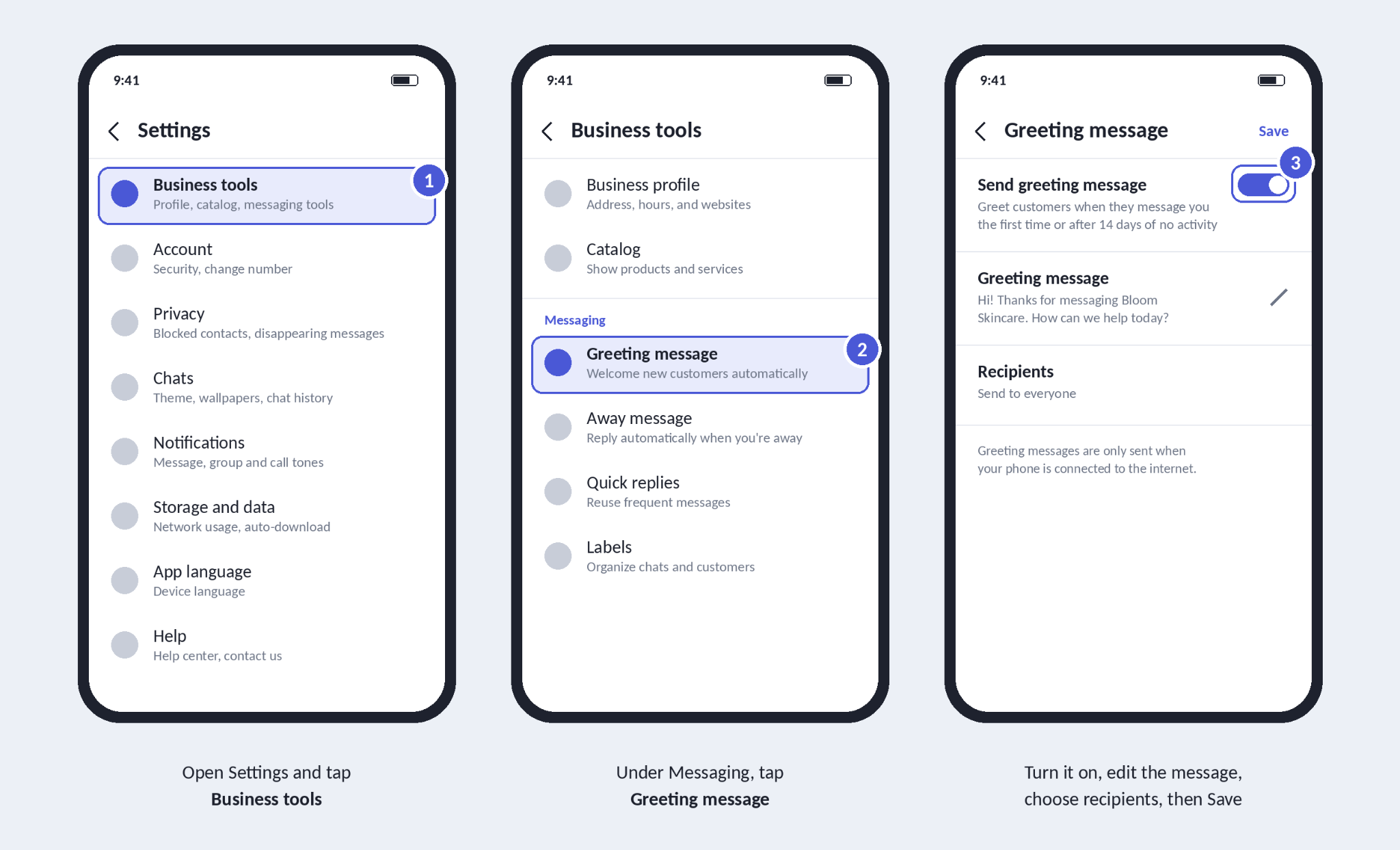
Your phone needs an internet connection for these to send. WhatsApp’s Help Center has full guides to away messages and greeting messages.
While useful, these are replies, not scheduled messages. They only go out when someone messages you first. For more on what WhatsApp Business can automate, see our guide to sending automated WhatsApp messages.
How to schedule WhatsApp messages on Android
Android has the most options, because apps can do more on Android than on iPhone. Scheduling apps work by opening WhatsApp and sending the message for you at the time you set.
The steps are similar in most apps:
- Install a scheduling app from the Google Play Store.
- Give it the permissions it asks for. Most need accessibility access, which lets them open WhatsApp and tap send on your behalf.
- Choose WhatsApp, then pick the contact or group.
- Write your message and set the date and time. Many apps also let you repeat it daily, weekly, or monthly.
- Choose whether the app sends automatically or asks you to confirm first.
Before relying on one, know that some apps need your phone unlocked to send, and Android's battery saver can close them before the message goes. And because these apps aren't made by WhatsApp, an update to either app can break them.
How to schedule WhatsApp messages on iPhone
There are very few scheduling apps for WhatsApp on iPhone, because Apple doesn’t let apps control other apps the way Android does. The workaround is Apple’s free Shortcuts app, which comes pre-installed.
You set up an automation that runs at a certain time and prepares your WhatsApp message.
- Open the Shortcuts app and tap the Automation tab.
- Tap + (or New Automation) and choose Time of Day.
- Set the time and how often it should run, then choose Run Immediately so it doesn’t ask first.
- Tap Next, then New Blank Automation.
- Add the WhatsApp Send Message action.
- Choose the recipient and type your message.
- Tap Done.
At the time you chose, the automation opens WhatsApp with your message ready, but in most cases you still need to tap send. So it works more like a timed reminder than a true scheduled send.
Time of Day automations also repeat, so delete the automation afterwards if you only want the message sent once. And since each automation sends one message, scheduling several messages means setting up several automations.
How to schedule WhatsApp messages on WhatsApp Web
If you use WhatsApp on a computer, browser extensions can add a “send later” button to WhatsApp Web.
- Install a WhatsApp scheduling extension from the Chrome Web Store.
- Open WhatsApp Web and link your phone, if you haven’t already.
- Open the chat, write your message, and use the extension’s schedule button to pick a date and time.
This is the most "set and forget" option for personal use, but your computer has to be on, with the browser open and WhatsApp Web logged in, when the message is due. The extension can also read your chats, and charge once you schedule more than a few messages.
Is it safe to use a WhatsApp message scheduler?
For a birthday message to a friend, the risk is usually small. But scheduling tools aren’t made or approved by WhatsApp, and they work very differently from each other. Some just remind you to send and others take control of WhatsApp to send for you.
Check what the tool can access
Before you install anything, look at what it asks for. Accessibility access on Android and page access in a browser extension both let the tool see your messages and act inside WhatsApp.
It’s worth checking:
- who made the tool, and whether it has a track record
- what permissions it asks for, and why
- whether it stores your messages or contacts on its own servers
- how easily you can remove its access later
A scheduler should never ask for your WhatsApp verification code. If one does, don’t use it.
Test the scheduler before relying on it
Scheduled messages can fail quietly. Your phone might be locked, your battery saver might close the app, or your browser might be shut. Send a test message to yourself or a friend first, and check that it arrives on time.
For anything important, like a payment reminder or a message to a client, keep a manual reminder as a backup until you trust the tool.
Take extra care with business messages
This is where the risk changes. WhatsApp’s Terms of Service don’t allow automated or bulk messaging through unauthorized tools, and WhatsApp actively detects and restricts accounts that use them.
Scheduling a single personal message is unlikely to cause problems. But using a scheduling app to message dozens of customers from your business number puts that number at risk. If customers rely on it to reach you, losing it is a serious problem.
Businesses should also only message people who’ve agreed to hear from them, and make it easy to opt out. We cover the full rules in our guide to sending automated WhatsApp messages without getting banned.
How businesses can schedule WhatsApp messages at scale with Heyy
Scheduling messages to hundreds of customers takes more than a phone app. Your team can't share one properly, and as we've seen, unofficial apps put your business number at risk.
That's why businesses use the WhatsApp Business Platform, Meta's official way to send messages at scale. You access it through an approved provider like Heyy, an official Meta partner, and use it to schedule appointment reminders, order updates, payment reminders, follow-ups, and re-engagement campaigns.
Before you start, there are a few rules to know:
- Templates for messages you start. If a customer hasn't messaged you in the last 24 hours, you can only reach them with a template message that Meta has approved.
- Opt-in. Meta requires businesses to get permission before messaging people, and the person must know which business they're agreeing to hear from.
- Messages cost money. Meta charges per delivered message, and from October 1, 2026 that includes replies to customers too.
With that covered, here's how to schedule messages to your customers.
Step 1: Connect your WhatsApp number
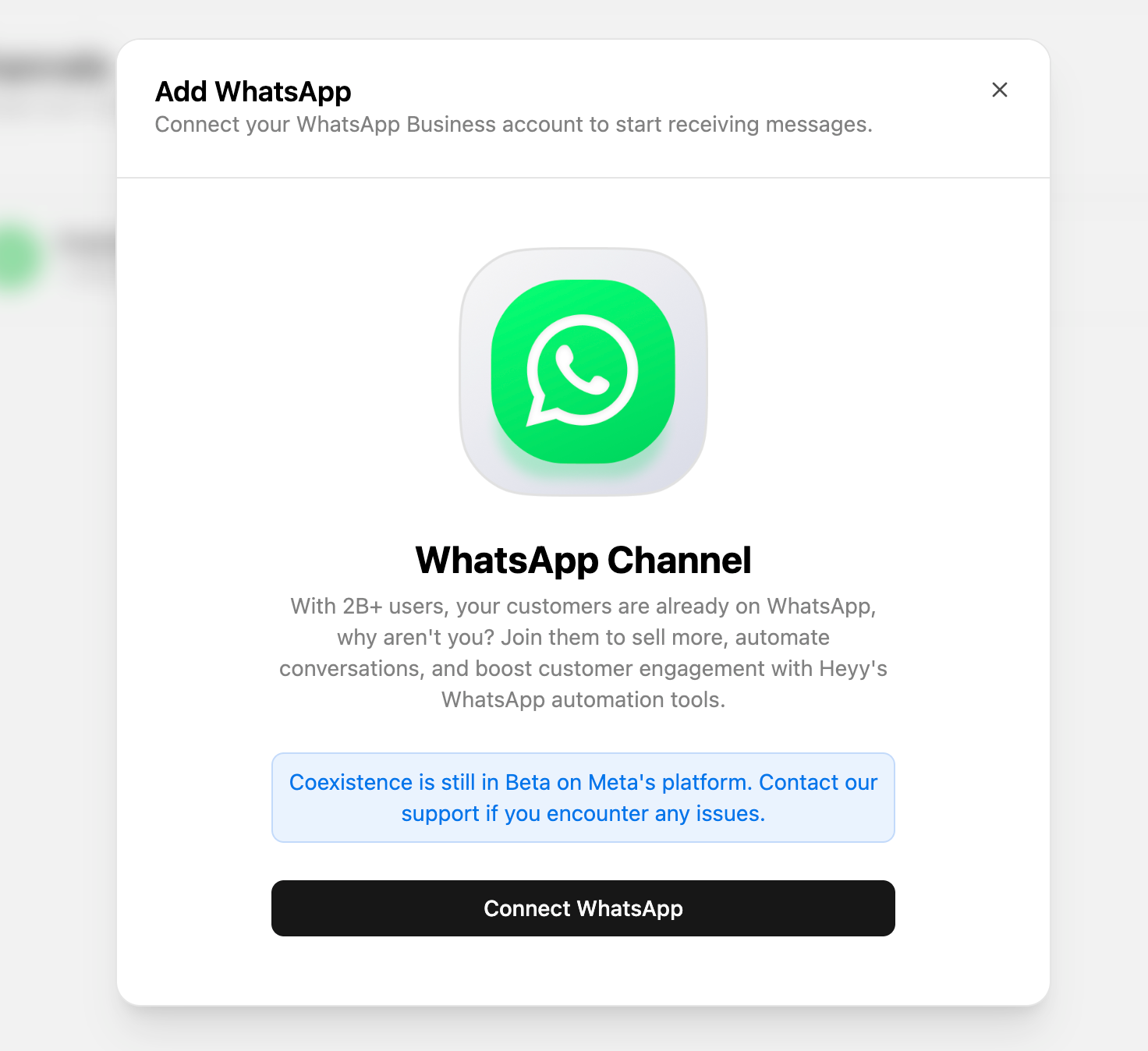
Log in to Heyy, go to Settings → Channels → Add Channel, select WhatsApp, and click Connect Number. You can connect with Cloud API, which is recommended for most businesses, or with Coexistence, which lets you keep using the WhatsApp Business app on your phone.
You’ll need a Meta Business Portfolio with its Business Info completed, and a number that can receive an SMS or voice call.
Step 2: Create a message template
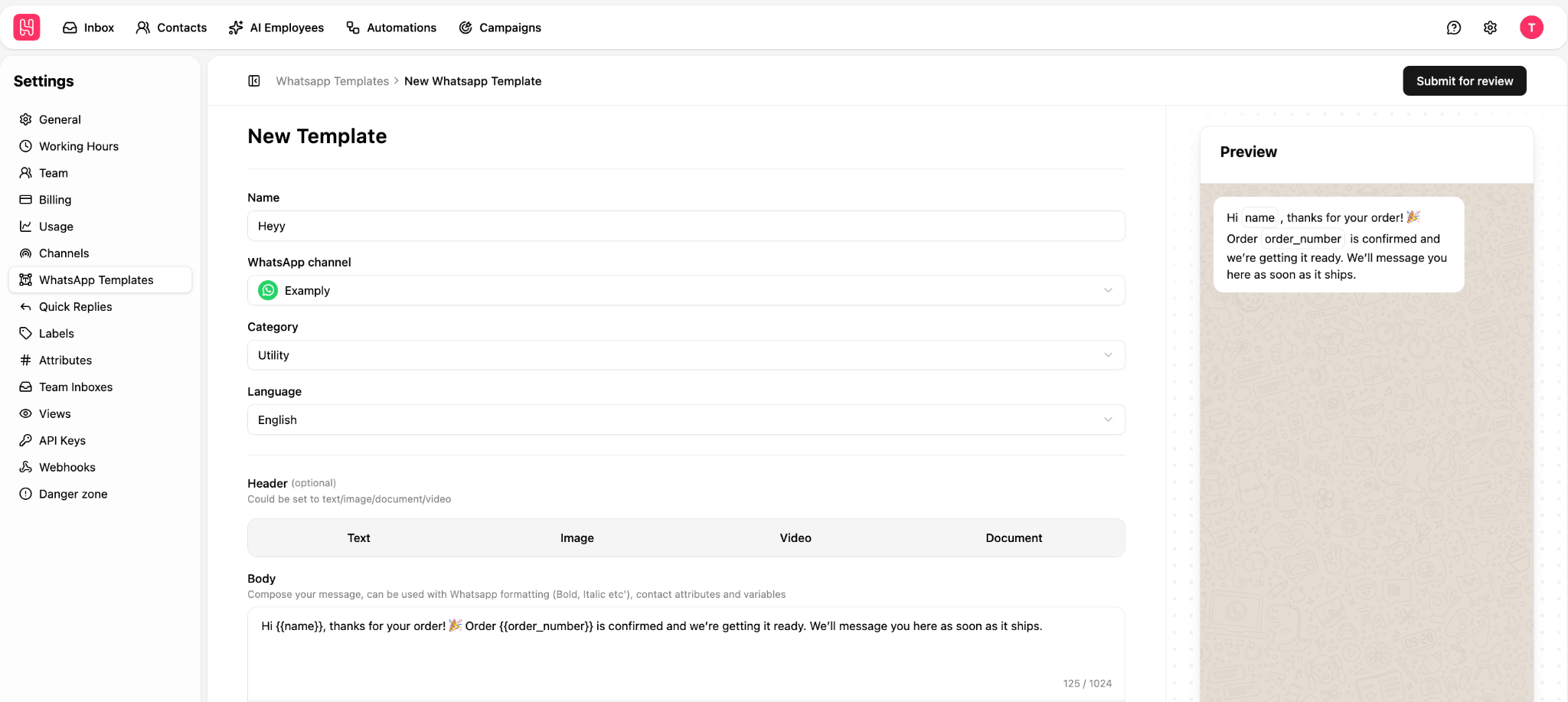
Go to Settings → WhatsApp Templates, create your message, choose its category (marketing, utility, or authentication), and submit it to Meta for approval. You can add variables like {{name}} so each message is personal.
Step 3: Create a campaign
Open Campaigns, name your campaign, and choose your WhatsApp channel. Then pick who should receive the message from a saved contact view or filters, like “customers who opted in and bought in the last 90 days.” Heyy only sends to contacts who are eligible to receive outbound messages.
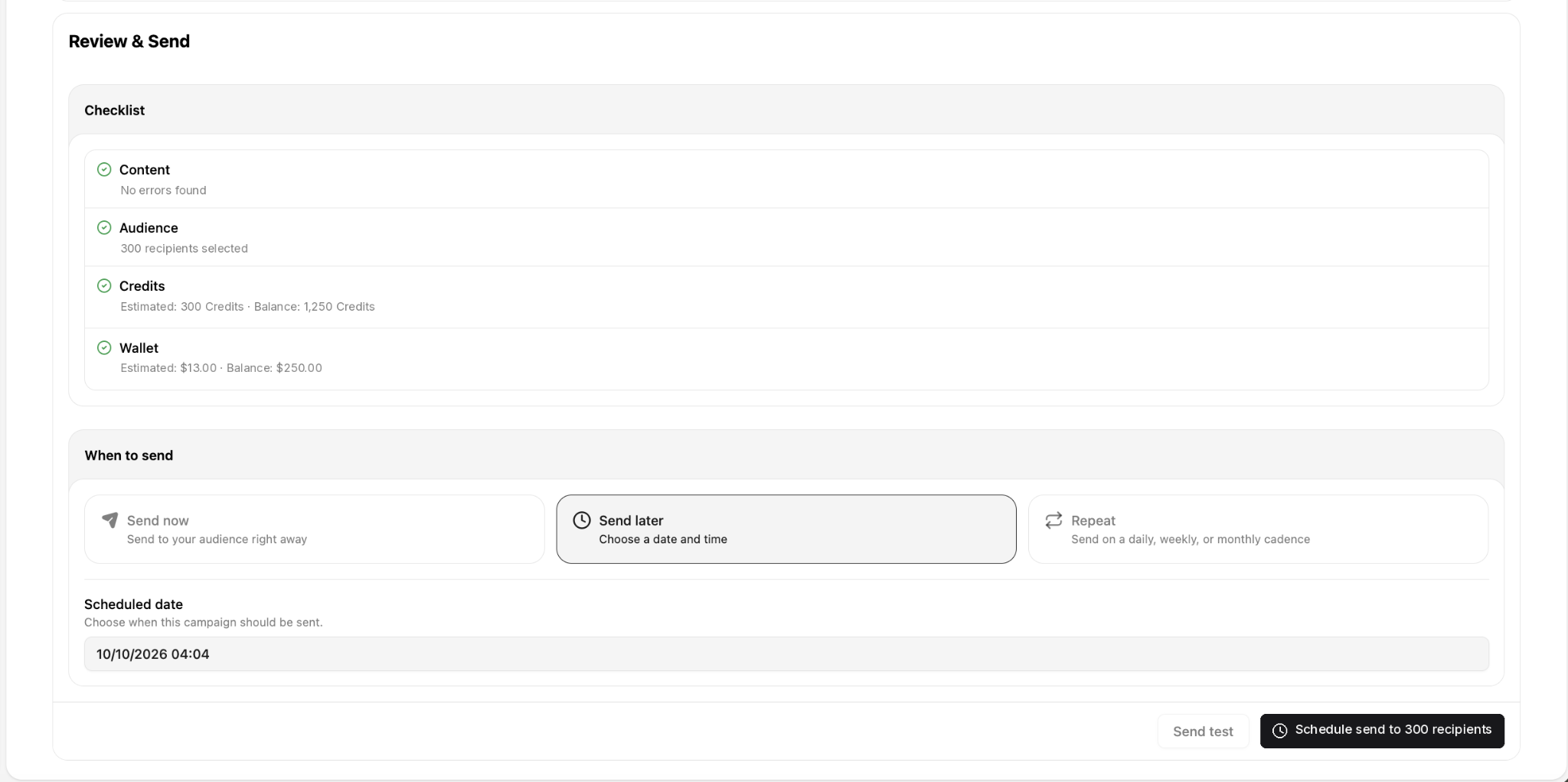
Step 5: Pick your template and schedule it
Select your approved template, then choose when it goes out. If scheduling is available in your workspace, set the date and time you want. Otherwise, start the campaign when you’re ready.
Step 6: Track the results
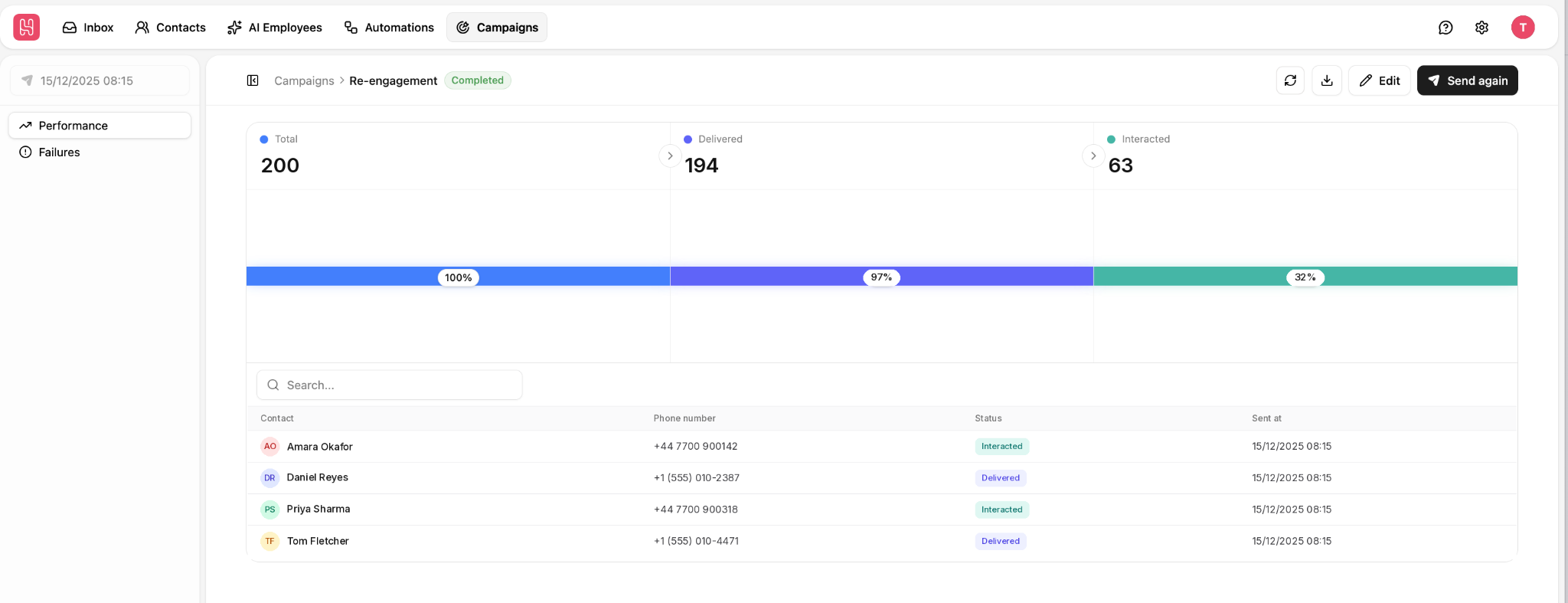
The campaign page shows how many messages were sent, delivered, and interacted with. The Failures view shows any messages that didn’t get through, so you can fix them before the next send.
Schedule messages around events, too
Not every scheduled message is a campaign. With Automations, you can send a WhatsApp template when something happens, like a new order, so the right message goes out at the right moment without anyone pressing send.
And when customers reply, an AI Employee can answer them straight away. It works like a smarter WhatsApp chatbot, trained on your business, and hands the conversation to your team in the shared inbox when it needs a person.
Tips for scheduling WhatsApp messages
- Check the details before you save. A 9 a.m. message from London lands at 4 a.m. in New York. It's also easy to pick the wrong contact, and you won't be there to catch it when it sends.
- Keep it current. Prices, stock levels, and meeting times can change before the send time. Read your scheduled messages again the day before, because it's easy to forget what you set up a week ago.
- For businesses, watch how people react. A promotion at 11 p.m. is an easy way to get blocked. If more people block or report you after a campaign, change the timing or the audience before the next one.
WhatsApp scheduling FAQs
1. Can you schedule a WhatsApp message without an app?
On iPhone, yes, using the built-in Shortcuts app, though it usually needs a tap to send. On Android and WhatsApp Web, you’ll need a third-party app or extension.
2. How do I schedule a WhatsApp message on my iPhone?
Open Shortcuts, create a Time of Day automation, set it to run immediately, and add the WhatsApp Send Message action with your recipient and message. At the set time, WhatsApp opens with the message ready, and you tap send.
3. Will the recipient know a message was scheduled?
No. Scheduling apps and Shortcuts send through WhatsApp as normal, so the message looks like any other.
4. Can I schedule a WhatsApp message to a group?
Yes, most Android apps and browser extensions let you pick a group as well as a single contact.
5. Can I schedule messages on WhatsApp Business?
The WhatsApp Business app can’t schedule a specific message, but it can send away messages on a schedule and greeting messages to new customers. To schedule messages to customers, businesses use the WhatsApp Business Platform through a provider like Heyy.
6. Is it safe to use apps to schedule WhatsApp messages?
For occasional personal messages, the risk is usually small, as long as you trust the app and never share your verification code. For business numbers, unofficial tools can lead to restrictions, so use the official WhatsApp Business Platform instead.
Schedule customer messages the safe way
For the odd personal message, Shortcuts on iPhone or a trusted app on Android will do the job until WhatsApp’s own scheduling arrives.
But if you’re messaging customers, your business number is too important to trust. With Heyy, you can schedule campaigns, send messages triggered by real events, and let an AI Employee handle the replies, all on Meta’s official WhatsApp Business Platform.
→ Start scheduling WhatsApp messages with Heyy.
Sources
- WhatsApp Help Center, How to use away messages and How to use greeting messages
- WhatsApp Terms of Service: automated and bulk messaging
- Meta, Get opt-in for WhatsApp
- Meta, Pricing for non-template messages (October 1, 2026 pricing, 24-hour window)
- WABetaInfo: WhatsApp is working on a feature to schedule messages (not a Meta source; Meta doesn’t announce features in testing)
- Heyy docs: WhatsApp getting started, Campaigns, Message & templates
More blog posts to read

Ready to Automate Support
Across Every Channel?
.svg)
.avif)