
How to Add Live Chat to Wix, Squarespace, or Webflow

You’ve picked a live chat tool, and it hands you a short piece of code with the instruction “paste this before the closing body tag.” If your site runs on Wix, Squarespace, or Webflow, you’ve probably never seen a body tag, and you don’t need to. Each builder has a settings box made for exactly this. The trick is knowing where it is, and which plan you need to use it.
This guide walks you through all three. Jump straight to your builder, follow the steps, and you’ll have chat on your site in a few minutes. If you’re still deciding what kind of chat widget to add, our guide to chat widgets for business websites covers the options first. And if your site runs on WordPress, we have a separate guide to adding live chat to WordPress.
Before you start: get your chat tool’s install code
Whichever builder you use, the first step happens in your chat tool, not your website. Look for a section called something like Install, Installation, or Website. It will give you a short snippet of code, usually starting with <script.
Copy the whole snippet, from the first character to the last. A missing bracket at either end is one of the most common reasons a chat widget doesn’t appear.
Some chat tools also offer a ready-made app for your builder, such as a Wix app. That works too, but pasting the code gives you the same result on all three builders and keeps the chat’s settings in one place: your chat tool.
How to add live chat to Wix
Wix gives you two ways to add chat. It has its own chat app, Wix Chat, which you can add from the Wix App Market and answer from your Wix dashboard. If you’d rather use a different chat tool, for example one that also handles WhatsApp or answers with AI, you add its code through Wix’s Custom Code settings.
Here’s how to add a chat tool’s code to every page:
- Open your site’s dashboard and go to Settings.
- Under Development & integrations, click Custom Code.
- Click + Add Custom Code at the top right.
- Paste your chat code into the box, and give it a name you’ll recognize, like “Live chat.”
- Under Add Code to Pages, choose All pages, and set it to load on each new page.
- Under Place Code in, choose Body – end.
- Click Apply, then open your live site to check the chat appears.
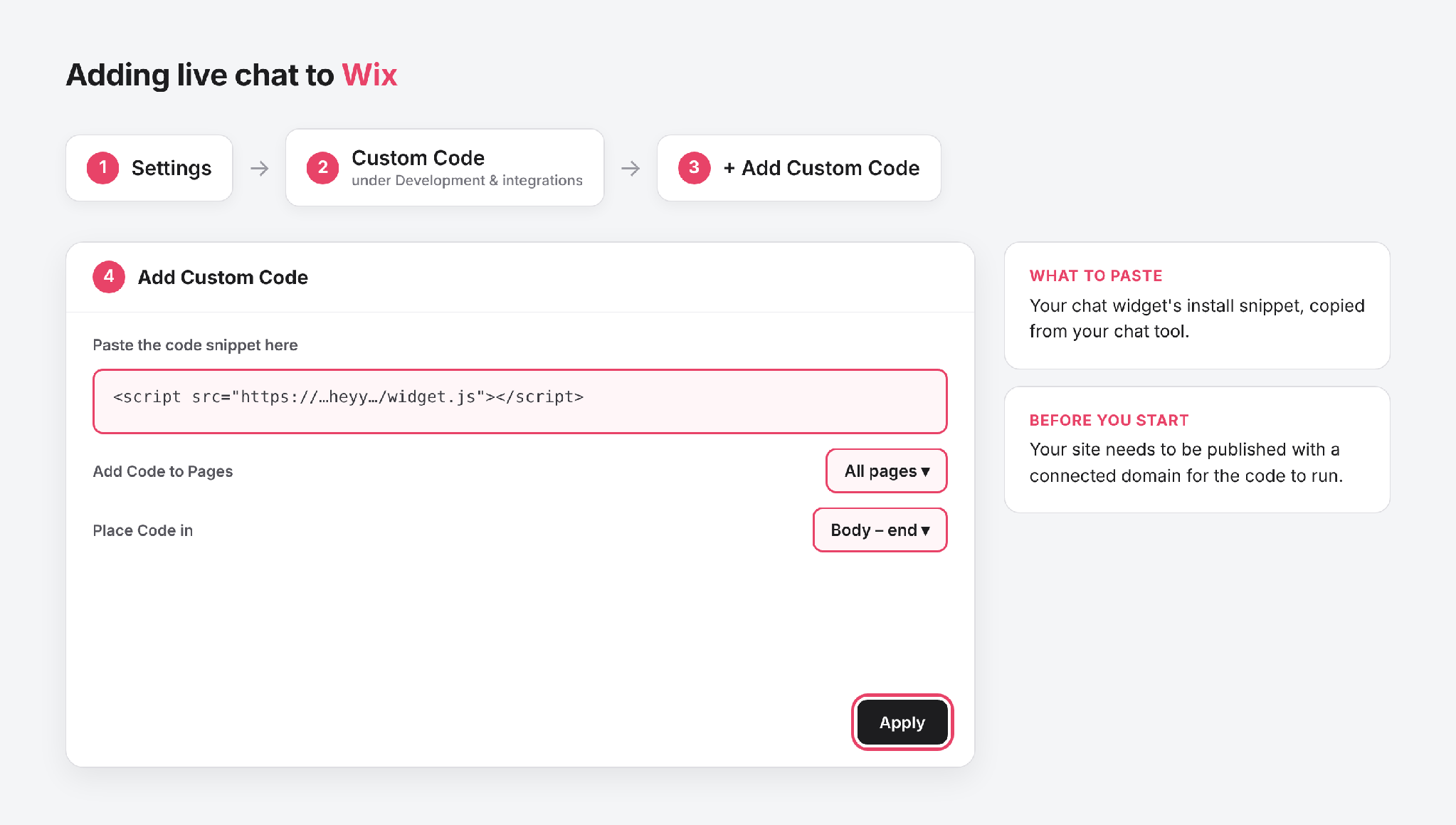
Where to add live chat code in Wix
Good to know: Wix only runs custom code on a published site with a connected domain. If you’re still building your site on a free Wix address, the chat won’t show until you connect a domain. And if you used Wix Chat before, turn it off so visitors don’t see two chat buttons.
How to add live chat to Squarespace
Squarespace uses a feature called Code Injection to add code to every page. It’s included on the Core, Plus, and Advanced plans, and on the older Business and Commerce plans. It isn’t on Basic or the older Personal plan, so if you can’t find it, check your plan first.
Here’s how to add your chat code:
- In your site editor, open Website, then Pages. Scroll to the bottom of the panel, click Custom Code (on some sites it’s called Website Tools), then click Code Injection.
- Paste your chat code into the Footer box. The footer loads after your page content, so the chat won’t slow your pages down.
- Click Save.
- Open your live site in a new browser window to check the chat appears.
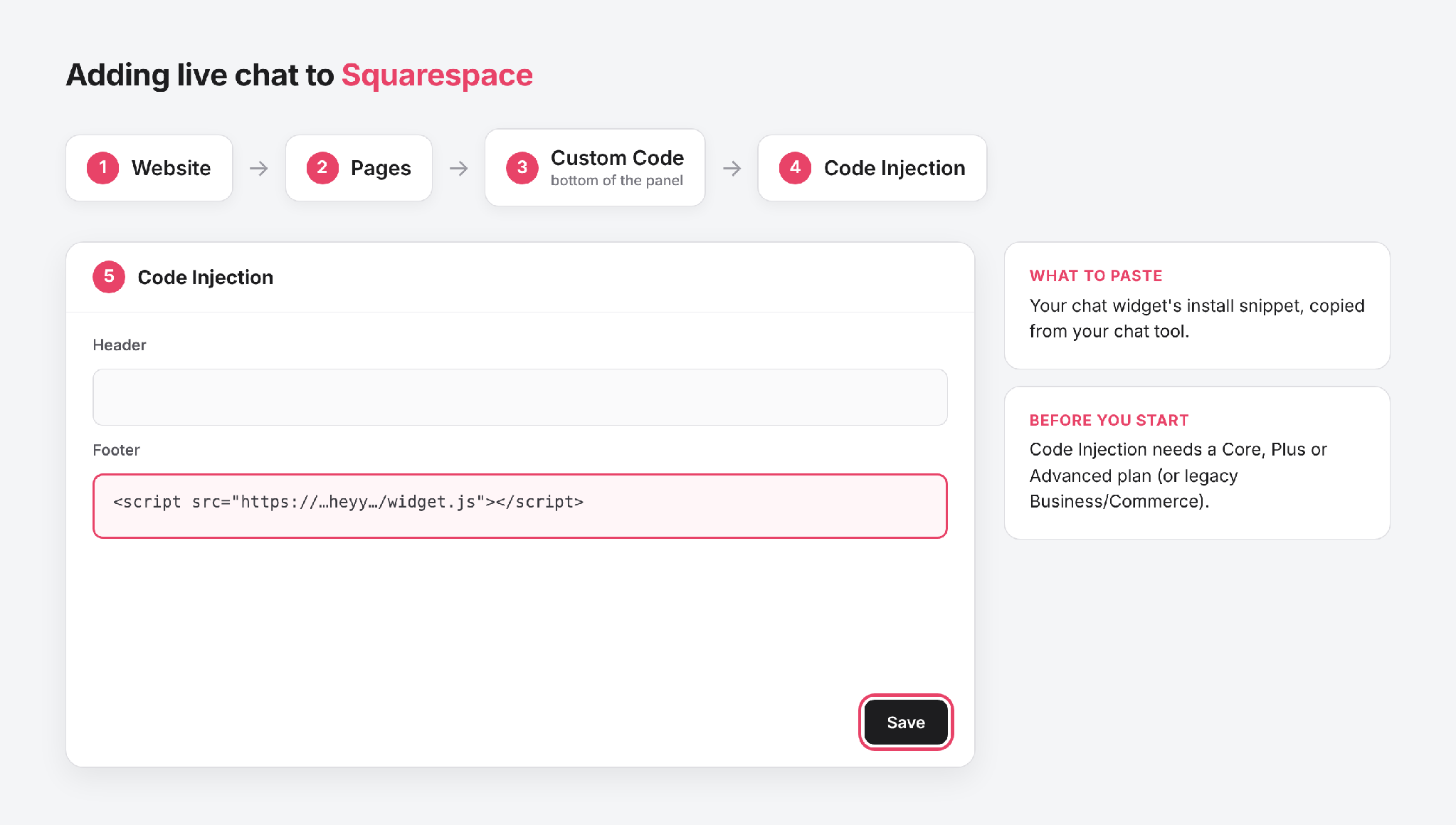
Where to add live chat code in Squarespace
Good to know: injected code doesn’t always show while you’re editing. Exit the editor and view the live site, or preview it, to see the chat. If it still doesn’t show, refresh the page.
How to add live chat to Webflow
In Webflow, site-wide code goes in your site settings. You need a paid site plan, or a Core, Growth, Agency, or Freelancer Workspace, to use it.
Here’s how to add your chat code:
- Open Site settings for your site, and go to the Custom code tab.
- Paste your chat code into the Footer code box. Footer code loads just before the end of each page, after your content.
- Click Save changes.
- Publish your site. Custom code only goes live when you publish.
- Open the published site to check the chat appears.
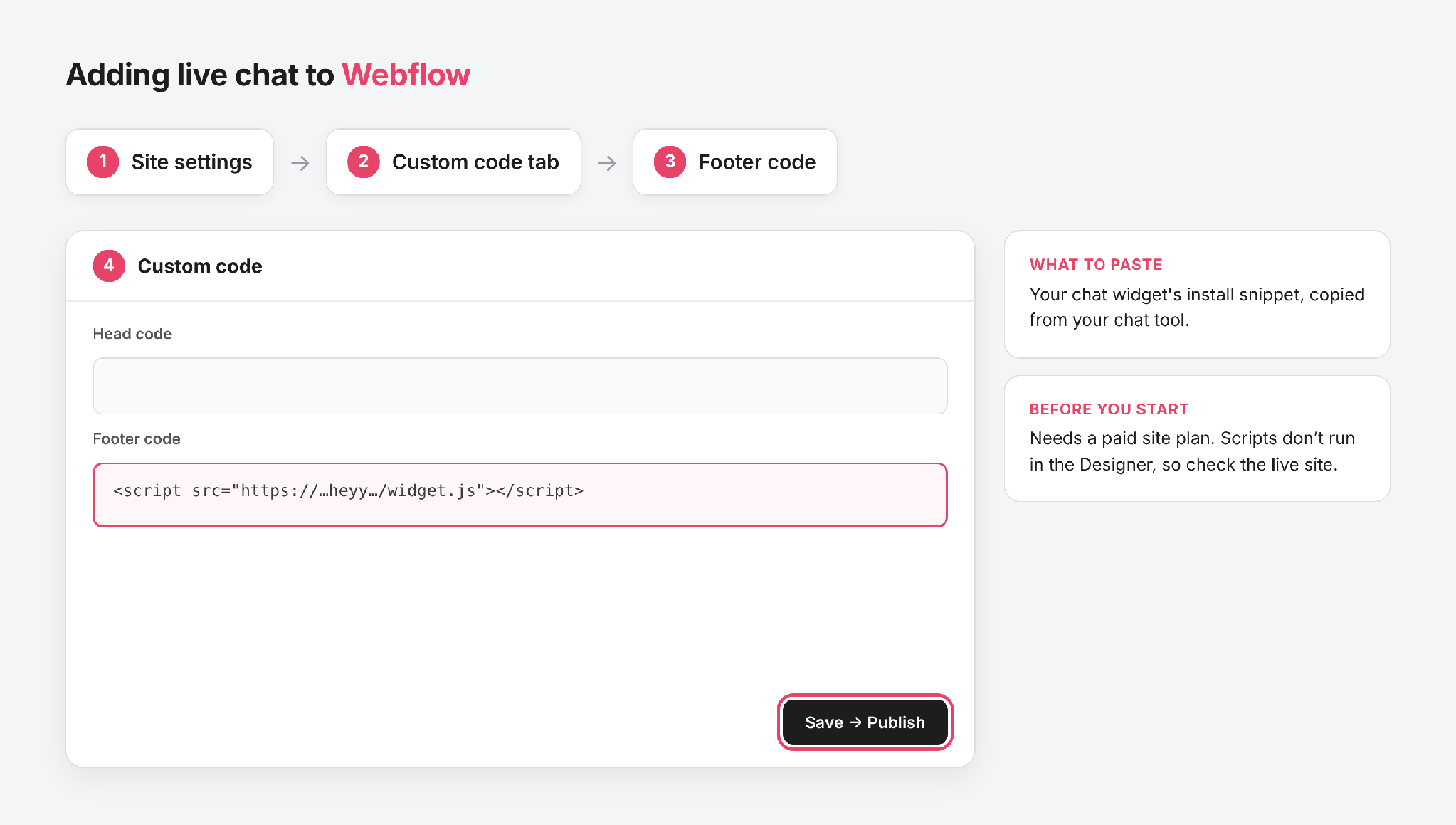
Where to add live chat code in Webflow
Good to know: Webflow doesn’t run custom scripts in the Designer, so you won’t see the chat while you’re editing. That’s normal. Check the published site instead.
Showing chat on certain pages only
You don’t always want chat on every page. It earns its place on pricing, product, and contact pages, but it can get in the way at checkout or on a landing page with one clear goal. Here’s how to control where it appears in each builder:
- Wix: when you add the code, choose Choose specific pages instead of All pages, and pick the pages you want.
- Squarespace: instead of the site-wide footer, open the page’s settings (the gear icon next to the page), go to Advanced, and paste the code into that page’s code injection box.
- Webflow: in the Designer, open Page settings for the page, and paste the code into the Before </body> tag box under Custom code. Then publish.
Many chat tools also let you hide the widget on certain pages from their own settings, which is easier to manage than code on individual pages. For which pages should show chat, and how it should behave on each, see our chat widget best practices.
Live chat not showing? Fixes by builder
Once the code is in, open your live site and look for the chat button. If it’s missing, the cause is usually small, and it often depends on your builder:
Still stuck? Your chat tool’s support team will have seen it before, so send them your site’s address and which builder you use.
Adding Heyy live chat to Wix, Squarespace, or Webflow.
If you’re using Heyy, you won’t need to work out where the code goes on your own. Our website live chat works on Wix, Squarespace, and Webflow, as well as WordPress and Framer, and we show you the steps for each one.
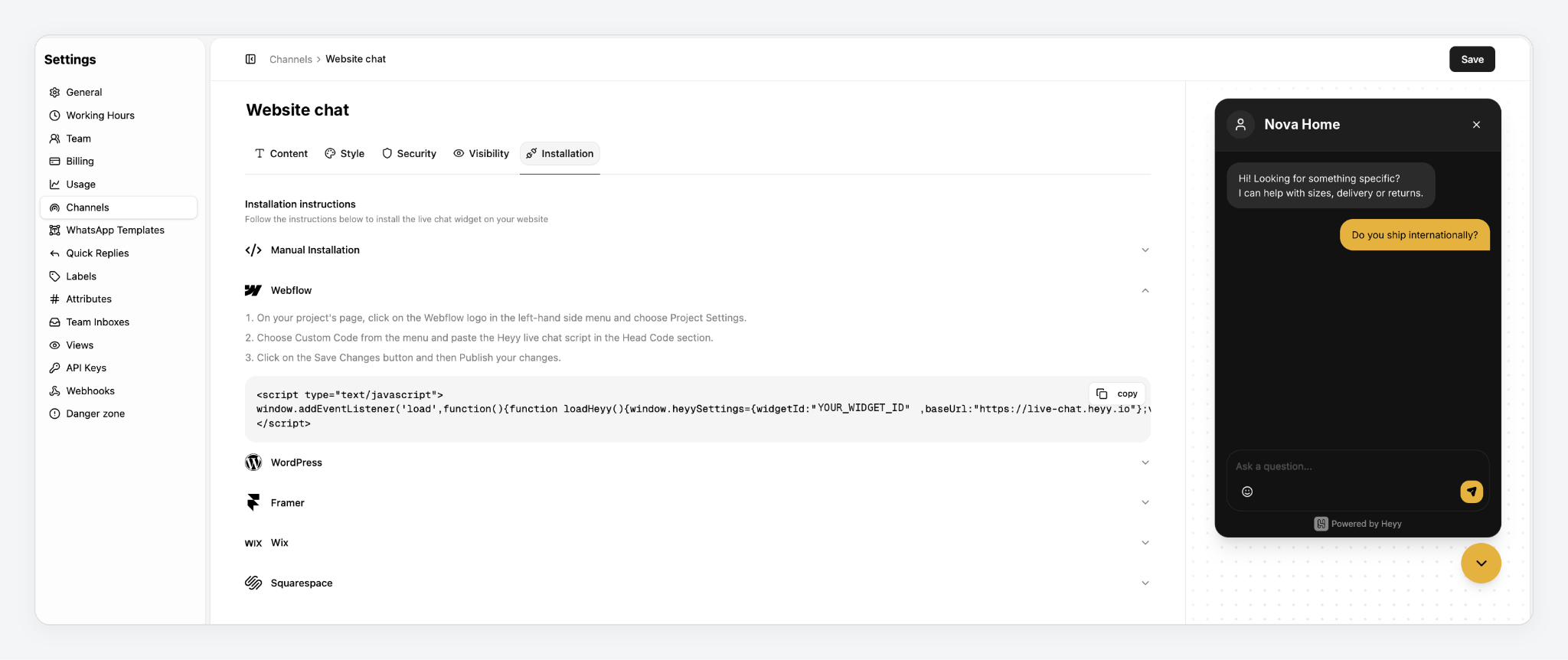
In Heyy, go to Settings → Channels, open your live chat channel, and click the Installation tab. Choose your builder, click copy to grab your install code, and follow the steps below.
Wix
- In your site’s dashboard, go to Settings and click Custom Code (under Advanced, or Development & integrations on newer dashboards).
- Click + Add Custom Code at the top right.
- Paste your Heyy script into the text box and give it a name.
- Under Add Code to Pages, choose All pages.
- Under Place Code in, choose Head.
- Click Apply.
Squarespace
- Open Code Injection.
- Paste your Heyy script into the Header field.
- Click Save.
Webflow
- On your project’s page, click the Webflow logo in the left-hand menu and choose Site settings.
- Open Custom code and paste your Heyy script into the Head code section.
- Click Save changes, then publish your site.
You’ll notice Heyy’s code goes in the header rather than the footer. That’s fine. Our script waits until the rest of your page has loaded before it starts, so it won’t slow your pages down.
Once it’s installed, the other tabs let you make the widget your own. In Style, you can set your brand color, choose left or right, and adjust the spacing from the edge. In Visibility, you can list the pages where the widget should stay hidden, like checkout, without touching your site’s code.
And you don’t have to be online to answer. Our AI Employee replies to your website visitors straight away and hands the chat to your team when a person needs to step in.
After it’s live: 3 things to set up
Getting the chat onto your site is the quick part. What happens next decides whether visitors use it, and these three things make the biggest difference.
- Write a greeting that fits the page. “Hi! How can we help?” gives visitors nothing to reply to. Something like “Not sure which plan fits? Tell me how many people will use it” does. Our live chat greeting examples have 40 you can adapt.
- Check it on your phone. Make sure the chat button doesn’t cover your menu, a cookie banner, or an add-to-cart button. If it does, move it to the other side or add more space from the edge.
- Decide who answers, and when. If nobody replies, a chat window does more harm than a contact form. Our comparison of live chat vs a contact form explains why, and what to do when your team is offline.
If your customers also message you on WhatsApp, you can bring those chats into the same inbox. Our guide to adding a WhatsApp chat widget explains the options.
FAQs
1. Can I add live chat to Wix for free?
You can add Wix’s own chat app, Wix Chat. To add a different chat tool’s code, your site needs to be published with a connected domain, which usually means a paid Wix plan.
2. Which Squarespace plans support live chat code?
Code Injection is included on the Core, Plus, and Advanced plans, and on the older Business and Commerce plans. It isn’t on Basic or the older Personal plan.
3. Why can’t I see the chat in the Webflow Designer?
Webflow doesn’t run custom scripts in the Designer. Publish your site and check the live version instead.
4. Should the code go in the header or the footer?
Use the footer, or “Body – end” on Wix, unless your chat tool says otherwise. Code in the footer loads after your page content, so it won’t slow your pages down.
5. Can I add live chat to only one page?
Yes. Wix lets you choose specific pages when you add the code. Squarespace and Webflow both have page-level code settings. Many chat tools can also hide the widget on chosen pages from their own settings.
6. Will live chat slow down my website?
A well-built chat widget loads after the rest of your page, so visitors won’t notice. Test a key page with PageSpeed Insights before and after adding it to be sure.
Live chat on your site, in minutes
Wix, Squarespace, and Webflow all make room for live chat. The code just goes in a different place on each, and each needs the right plan. Paste the code where your builder expects it, publish, and check the live site, not the editor.
Then make sure every visitor who asks a question gets an answer. Heyy’s AI Employee replies straight away on your website, WhatsApp, and Instagram, and hands chats to your team when a person is needed. Try Heyy free for 7 days and have chat running on your site today.
More blog posts to read

Ready to Automate Support
Across Every Channel?

