.svg)
How to Add Live Chat to a WordPress Site

When live chat on a WordPress site isn’t working, it usually looks like one of these:
- The chat bubble sits in the corner, and almost nobody clicks it.
- A visitor asks a question at 9 p.m. and gets an answer the next morning, long after they’ve gone.
Most site owners blame the plugin: “We picked the wrong one. Let’s try another.”
But the plugin usually isn’t the problem. Most chat tools do the same basic job, and what decides whether yours brings in customers is whether the tool fits how your business runs, and how you set it up after installing it.
This guide covers the three ways to add live chat to WordPress, how to choose the right tool, and the setup that gets visitors using it.
3 ways to add live chat to WordPress
To your visitors, all three look much the same: a way to message you from your site. For you, they’re very different once the messages start coming in. Here’s how they compare:
The first two give you true live chat: visitors type into a window on your site, and you reply from the tool’s inbox. The third is quicker, but the conversation leaves your website, and it only works for visitors who have that app. Our guide to adding a WhatsApp chat widget covers that option in detail.
That said, which tool you choose matters more than which method you use to install it, so let’s start there.
How to choose a live chat plugin for WordPress (6 things to check)
Most live chat tools look alike in screenshots. The differences show up a few weeks in, when the messages pile up. Before you install anything, check these six things:
- Who answers when you’re offline? If nobody replies at 9 p.m., your chat becomes another contact form. Look for a tool that can answer common questions with AI and pass the rest to your team.
- Does it cover your other channels? If customers also message you on WhatsApp, Instagram, or Facebook, a tool that brings them into the same inbox saves your team from checking four apps.
- Can your team share it? You’ll want to assign chats to the right person and see who’s handling what, even if that’s only two of you today.
- Can you choose where it appears? You may not want chat on every page, for example on your blog or a landing page with one clear goal.
- Will it slow your site down? Every chat tool adds some code to your pages. Check that it loads in the background rather than holding up the rest of your page.
- What will it cost as you grow? Some tools charge per agent, others per conversation or per AI reply. Our breakdown of live chat software pricing shows what each model costs in practice.
If you’re replacing a free tool you’ve outgrown, our list of Tawk.to alternatives compares the most common options.
How to add live chat to WordPress, step by step
Once you’ve picked a tool, check how it installs. Its help center or setup screen will usually say whether it has a WordPress plugin, gives you an embed code, or both. Then follow the steps for that method below. None of them need you to write any code, and most take less than 10 minutes.
Option 1: Add live chat with a plugin
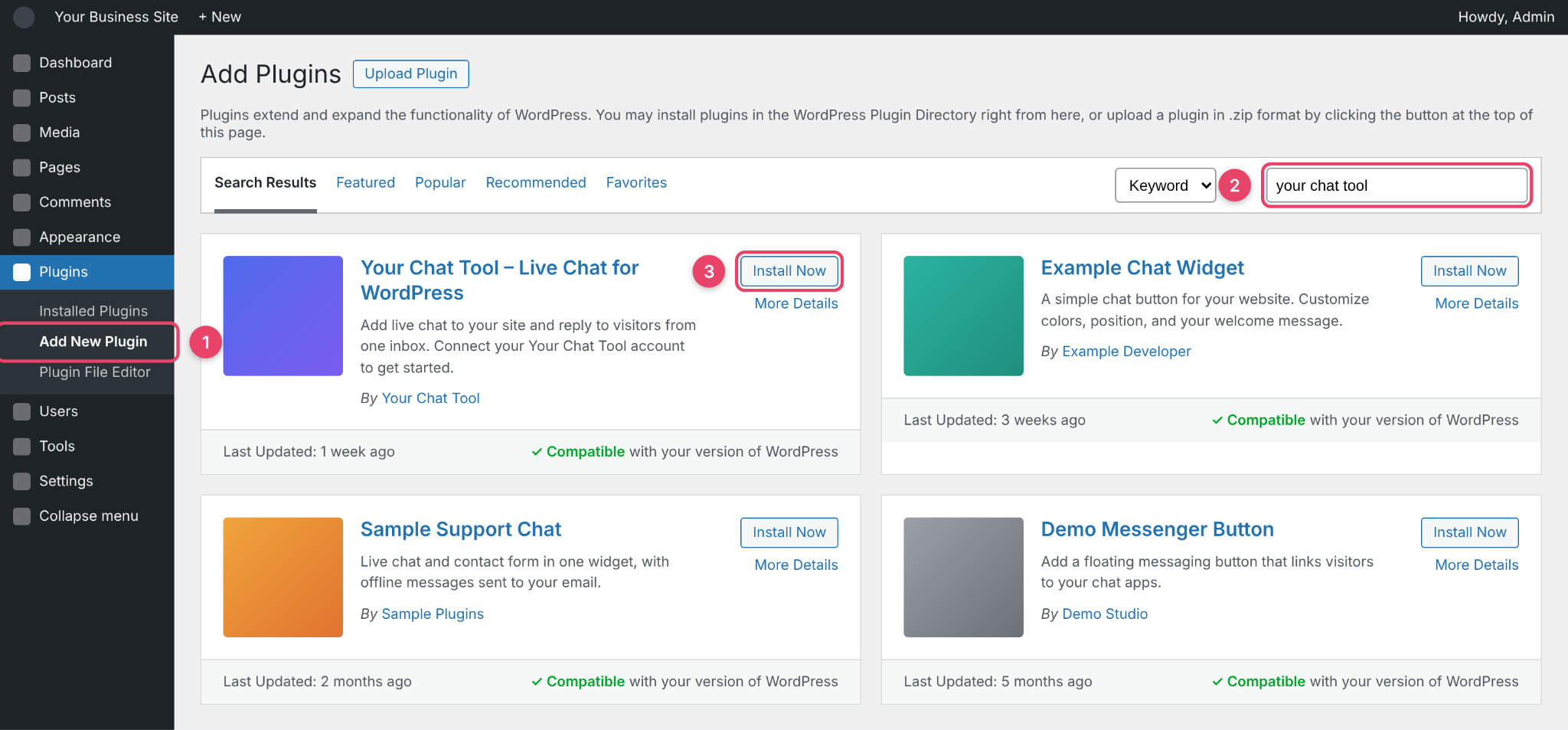
- In your WordPress dashboard, go to Plugins → Add New Plugin.
- Search for your chat tool by name, and check the publisher matches the tool’s official website.
- Click Install Now, then Activate.
- Open the plugin’s settings (usually a new item in your dashboard menu) and sign in to your chat tool account, or create one.
- Visit your site in a private browser window to check the chat appears.
If you’re not sure which plugin is the official one, go to the chat tool’s website first. Most link straight to their WordPress plugin.
Option 2: Add live chat with an embed code
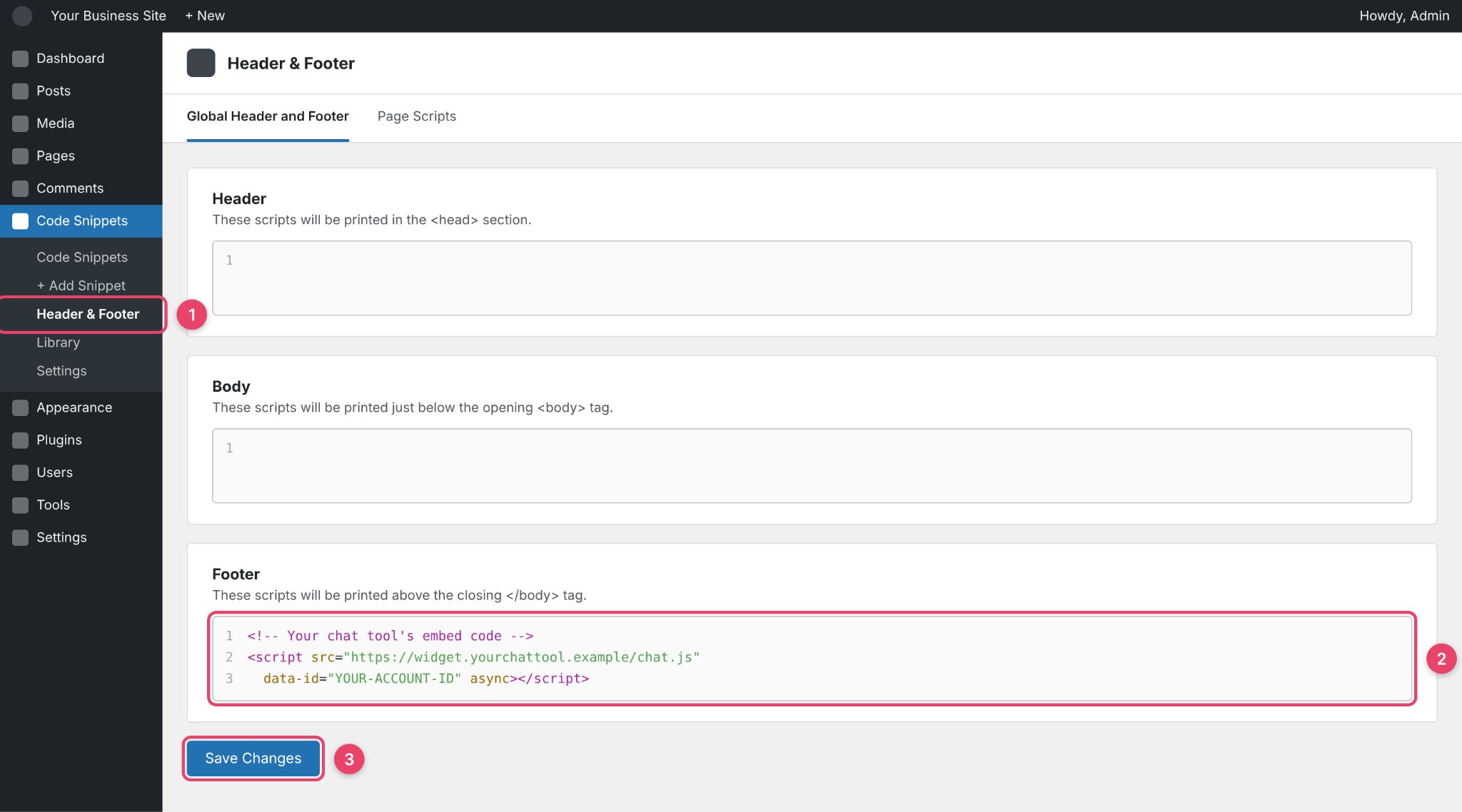
Many chat tools give you a short piece of code instead of, or as well as, a plugin. You paste it into your site once, and the chat appears on every page.
- In your chat tool, find the install or embed code. It’s usually under a heading like Install, Website, or Embed.
- In WordPress, install the free WPCode plugin, which lets you add code to your site without editing your theme.
- Go to Code Snippets → Header & Footer.
- Paste the code into the box your chat tool tells you to use. Most say the Footer.
- Click Save Changes, then check your site in a private browser window.
Want chat on one page only? Edit that page, add a Custom HTML block, and paste the code there instead.
Option 3: Add a WhatsApp or Messenger chat button
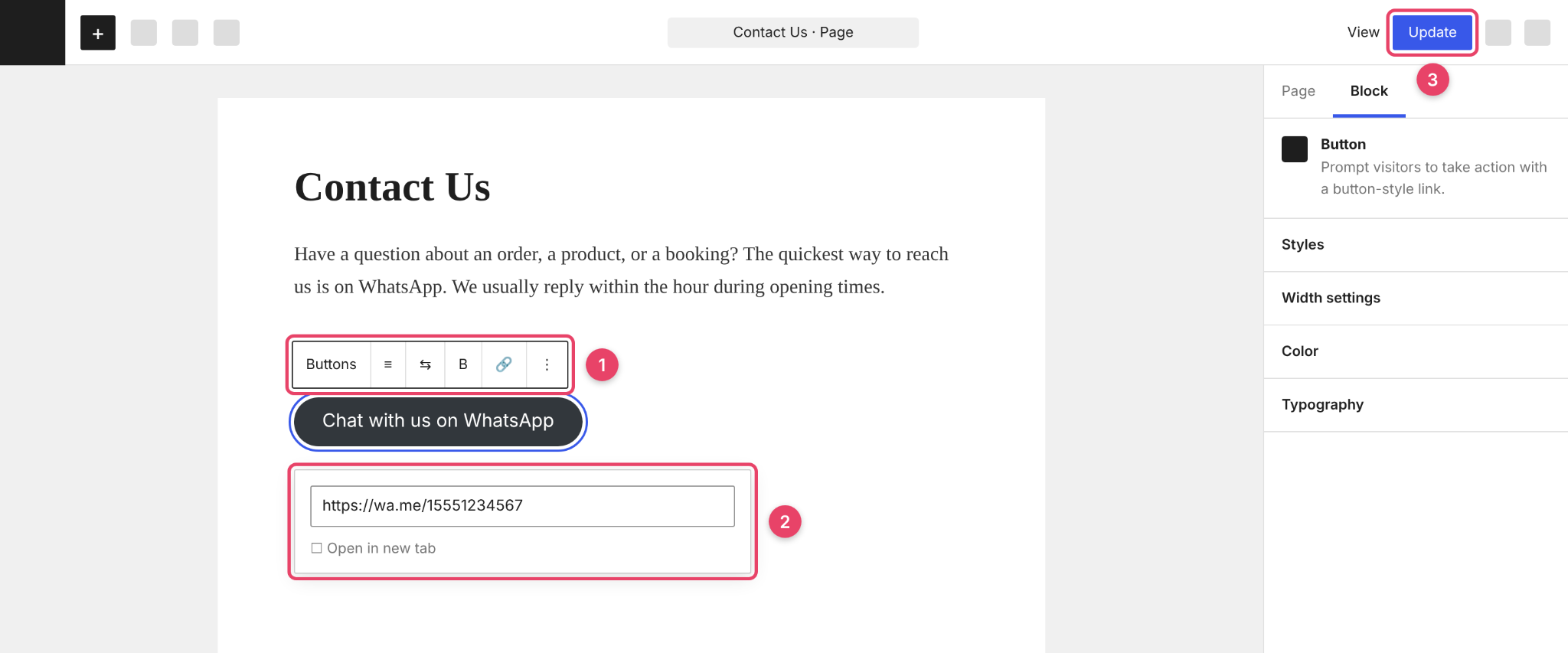
- Create your chat link. For WhatsApp, that’s wa.me/ followed by your full number. Our guide to creating a WhatsApp link walks you through it. For Messenger, it’s m.me/ followed by your Facebook Page’s username.
- Edit the page where you want the button and add a Buttons block.
- Type your button text, such as “Chat with us on WhatsApp,” and add your link.
- Click Update or Publish, then test the button on your phone.
How to add Heyy live chat to WordPress
If you’d like live chat that answers visitors even when you’re offline, that’s what we built Heyy for. Our live chat puts a chat widget on your WordPress site, and an AI Employee replies straight away using your business information. When a visitor needs a person, it hands the chat to your team.
Before you start: you’ll need a Heyy account (start your free 7-day trial) and an AI Employee. If you haven’t set one up yet, our guide to creating your first AI Employee walks you through it.
Our live chat installs with a short script, so the steps are a lot like Option 2.
1. Copy your live chat script. In your dashboard, click the Settings icon in the top right, go to Channels, and open your Live Chat channel. On the Installation tab, expand WordPress and click copy.
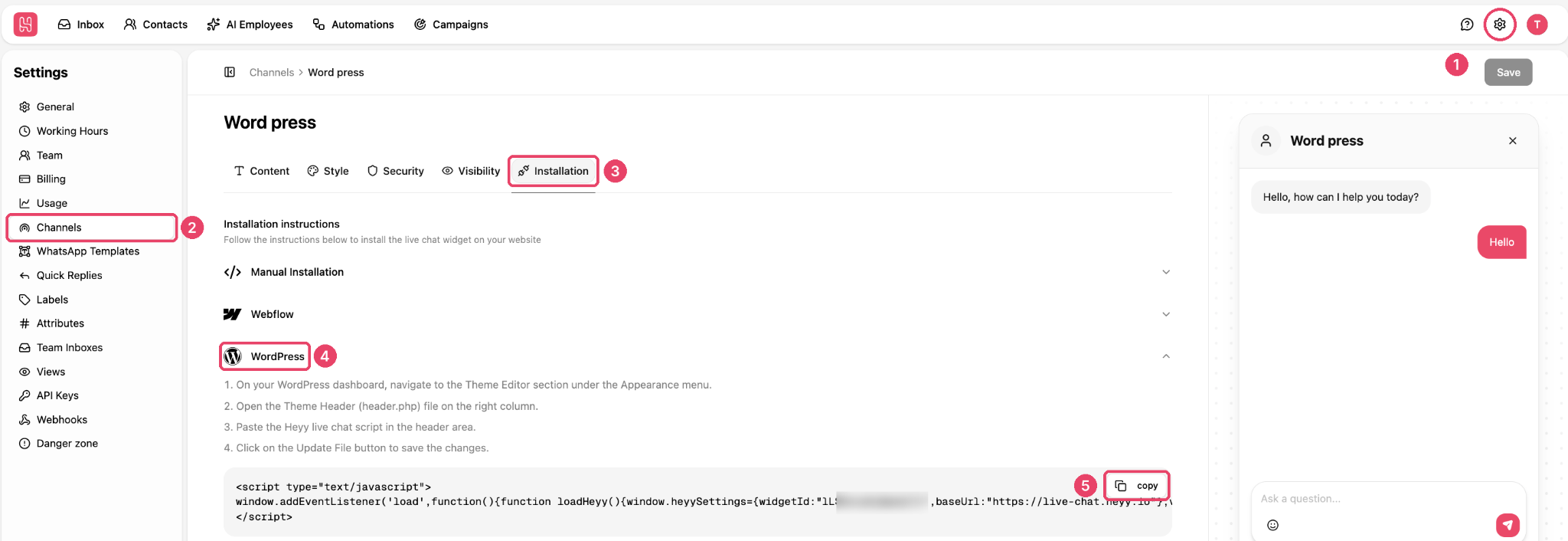
2. Paste it into WordPress. In WPCode, go to Code Snippets → Header & Footer, paste the script into the Header box, and click Save Changes. Our in-app instructions also show how to paste it straight into your theme’s header file. That works too, but your changes can disappear when the theme updates, so we recommend WPCode.
3. Make it look like your brand. Back in your dashboard, use the Content and Style tabs to set your greeting and colors. The preview on the right shows exactly what visitors will see.
4. Connect your AI Employee. Go to Automations and create a new automation. In the New incoming chat trigger, choose your Live Chat channel. Then add an AI Employee step and connect its Human Handover exit to what should happen next, like a short message letting the visitor know a teammate is on the way. Click Publish when you’re done.
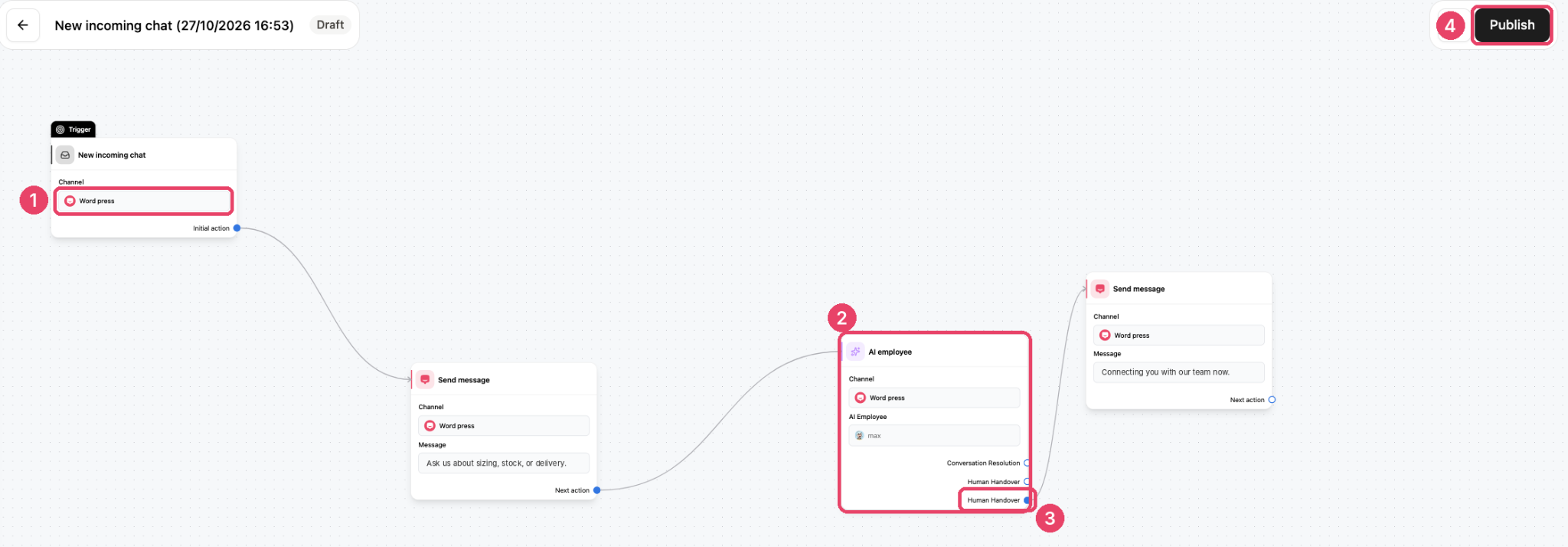
To decide exactly when your AI Employee should pass a chat to your team, see our guide to chatbot-to-human handoff.
5. Test it. Open your site in a private browser window and send a message. You’ll see it land in your inbox, right alongside your WhatsApp, Instagram, and Facebook Messenger chats.
How to set up your WordPress live chat after installing it
Getting the chat onto your site is the quick part. What happens next decides whether it’s worth having: where the chat appears, what it says, who answers, and whether it works on every device. Here are the four things to set up before you rely on it.
1. Choose where it appears. Chat earns its place on pages where people make decisions: pricing, product, checkout, and contact pages. On a blog post or a landing page with one clear goal, you might hide it. Most chat tools let you show or hide the widget on specific pages.
2. Write a greeting for the page. “Hi! How can we help?” gives visitors nothing to reply to. A greeting that matches the page, like “Trying to pick a plan? Tell me how many people will use it, and I’ll suggest the right one,” gives them a reason to reply. Our live chat greeting examples have 40 you can adapt.
3. Decide who answers, and when. Set your team’s hours and decide what happens outside them: an honest “we’ll reply in the morning” message, or AI that answers common questions and passes the rest on. If you use AI, plan how it hands chats to your team so customers never have to repeat themselves.
4. Test it like a visitor. Open your site on your phone and on a computer, ask a question, and check the reply arrives where your team will see it. Then check it doesn’t cover anything important on mobile, like your menu or an “Add to cart” button.
Live chat not showing on WordPress? 5 ways to fix it
You’ve installed your chat, refreshed the page, and nothing’s there. It’s frustrating, but it’s rarely a problem with the chat tool itself. In most cases, WordPress is hiding it, or something on your site is getting in the way. Work through these checks in order, starting with the quickest:
- Your site is showing a cached version. Clear the cache in your caching plugin (or your host’s dashboard), then reload the page in a private browser window.
- You’re logged in. Some chat tools hide the widget from logged-in admins. Check in a private window, where you’re logged out.
- The code is in the wrong place. Check you pasted it where your chat tool says, usually the Footer box in WPCode, and that you saved the changes.
- The chat is hidden on that page. If you’ve set the widget to show only on certain pages, check the page you’re testing is one of them.
- Another plugin is blocking it. Optimization and security plugins sometimes delay or block outside scripts. Turn them off one at a time to find the culprit, then add your chat tool as an exception.
Still stuck? Contact your chat tool’s support team. With your site’s URL, they can load your page, see whether their chat code is running, and usually spot what’s blocking it within a few minutes. To speed things up, tell them:
- how you installed it (plugin, WPCode, or a Custom HTML block)
- what you’ve already tried from the list above
- which caching, optimization, or security plugins you use
Most problems they see come down to a setting they can point you to, so you’ll often get the fix in their first reply.
WordPress live chat FAQs
1. Can I add live chat to WordPress for free?
Yes. Several chat tools have free plans, and a WhatsApp or Messenger link costs nothing. Free plans usually limit features like AI replies, team members, or removing the tool’s branding, so check what you’ll need as you grow.
2. Do I need a plugin to add live chat to WordPress?
No. Many chat tools give you an embed code you paste into your site once. A header and footer plugin like WPCode is the easiest place to paste it, but you can also use a Custom HTML block on a single page.
3. Will live chat slow down my WordPress site?
Any chat widget adds some code to your pages, but well-built ones load in the background, so the rest of the page isn’t held up. Test your page speed before and after you add it.
4. Can I add WhatsApp chat to my WordPress site instead?
Yes. You can add a button that opens a WhatsApp chat with your business. It’s quick and free, but it only works for visitors who use WhatsApp. Our guide to adding a WhatsApp chat widget explains when that’s enough and when you’ll also want live chat.
5. Can I answer live chat from my phone?
Most chat tools have a mobile app or a mobile-friendly inbox, so you can reply on the go. Check before you choose, especially if you’re a small team.
Turn your live chat into conversations
Adding live chat to WordPress takes a few minutes, whichever way you do it. What decides whether it brings in customers is everything after that: where it appears, what it says, and whether anyone replies when a visitor asks a question outside office hours.
With Heyy, an AI Employee answers your website visitors straight away, day or night, and hands the chat to your team when a person needs to step in. Try Heyy free for 7 days and see how many of those late-night visitors become customers.
More blog posts to read

Ready to Automate Support
Across Every Channel?
.svg)
.avif)